Appearance, language and defaults
Applies to 1.6 updatedIn Settings you’ll find three separate screens for personalizing Nestino: Appearance, Language and Defaults. You set them for yourself — they don’t affect anyone else in the family.
Appearance
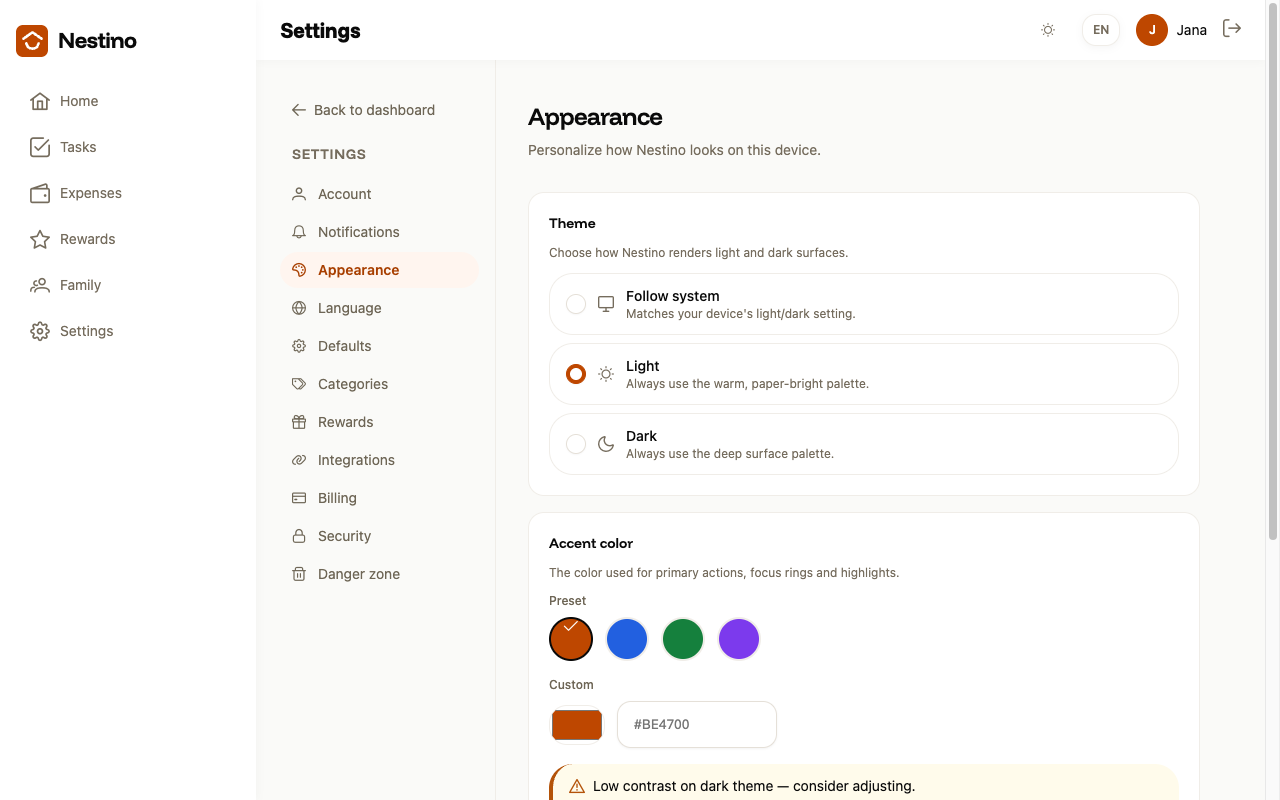
Open Settings → Appearance.
| Setting | Options | Default |
|---|---|---|
| Theme | Follow system / Light / Dark | Follow system |
| Accent color | Warm (default) / Blue / Green / Purple / Custom | Warm |
| Density | Comfortable / Compact | Comfortable |
Theme controls how Nestino renders light and dark surfaces — Follow system adapts to your device’s setting, while Light and Dark hold it fixed. For Accent color, pick one of the four presets, or choose a Custom color through the color picker or by entering a hex code. Density changes how much space surrounds content in lists and panels.
Language
- Open Settings → Language.
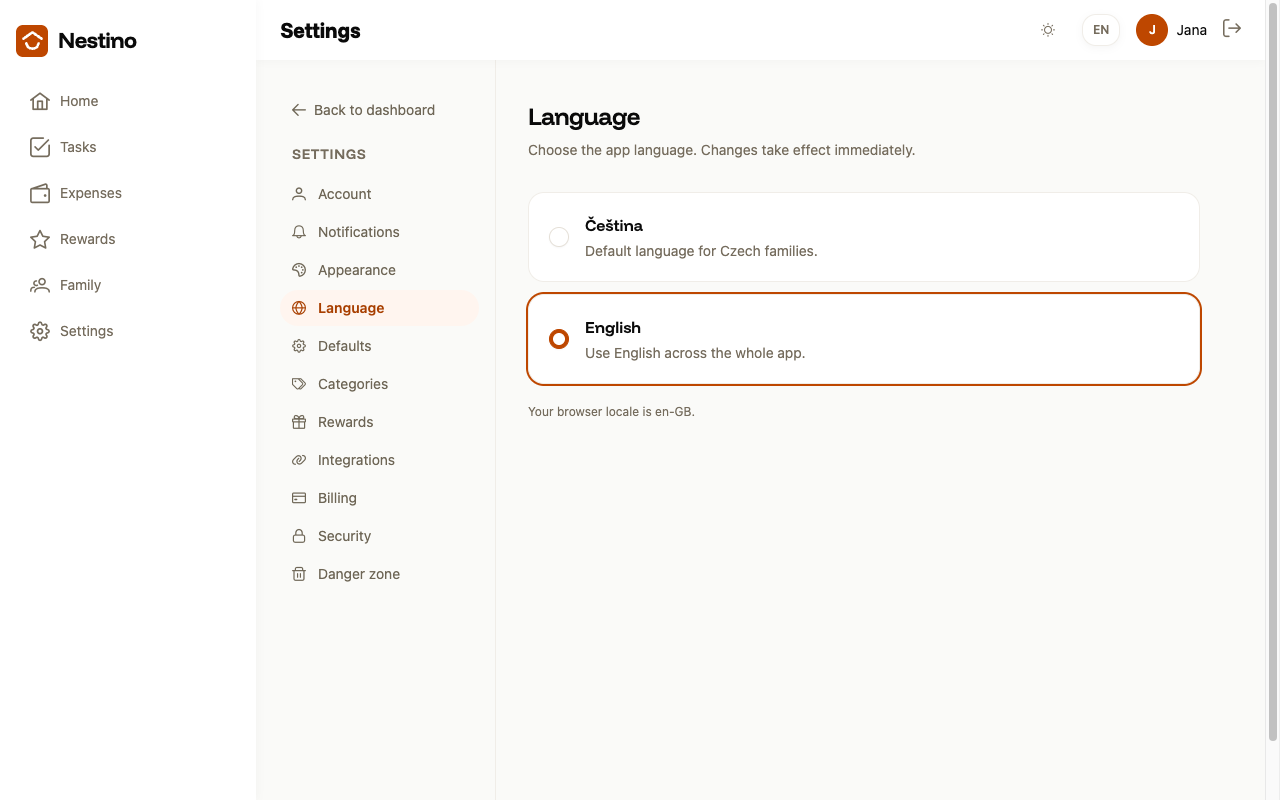
- Click the Čeština or English card (or tab to it with the keyboard and confirm with Enter or space).
The switch takes effect across the whole app immediately, without a page reload. Below the cards is an info line showing your browser’s language — it’s there for reference only and has no effect on your choice.
Defaults
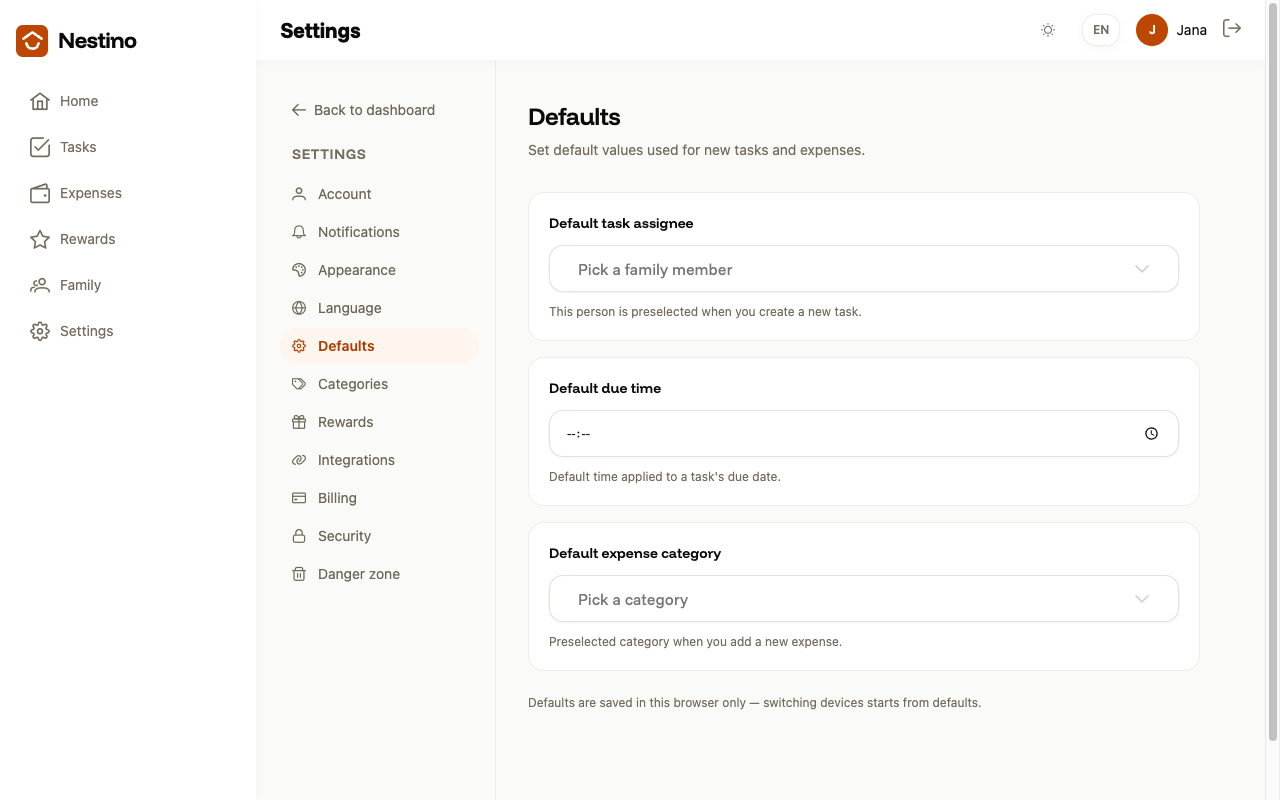
Open Settings → Defaults. The screen offers three values that Nestino remembers in this browser:
- Default task assignee — the family member you want new tasks assigned to.
- Default due time — the time tasks are usually due.
- Default expense category — the category you log expenses under most often.
All three fields are optional and can be cleared at any time with the ×. The task and expense forms don’t read them yet in this version — Assignee, Due date and Category start empty.
Like Notifications and push (including the iOS PWA) and Quiet hours, this is a personal setting — Appearance and Language can be seen and changed by anyone, including a child, while Defaults is adults only.