Changing your password and signing out everywhere
Applies to 1.6 updatedSecurity is for changing your sign-in password and for signing out of every device at once, immediately. Only an adult can open the page — any role except Child. A child can’t reach it at all: the address redirects them to the dashboard, and the Security item is missing from their Settings.
Where to find it
- In Settings, click Security.
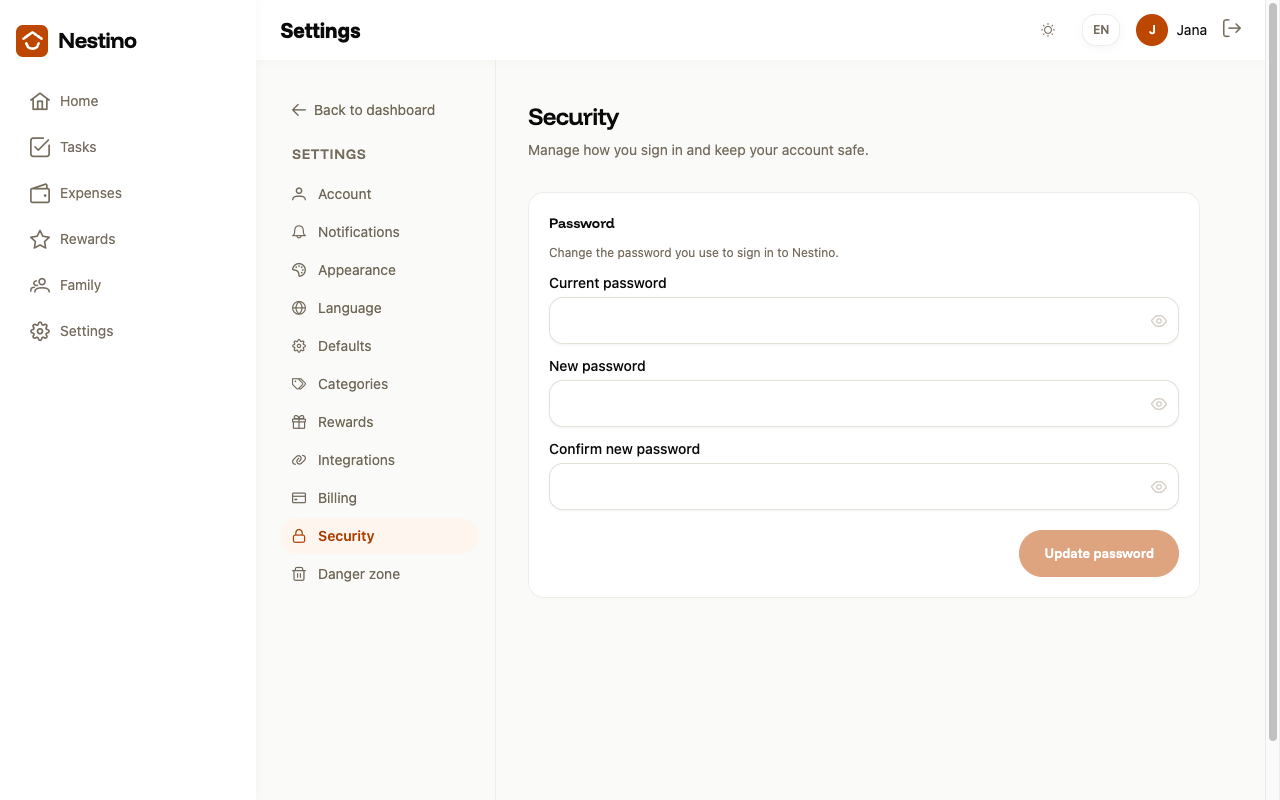
- The Password card opens with three fields and the Update password button. Below it is a separate Sign out everywhere button.
What to fill in
| Field | Required | What it means |
|---|---|---|
| Current password | yes | The password you are currently signed in with. |
| New password | yes | Your new password — the rules are below. |
| Confirm new password | yes | Must be exactly the same as the New password field. |
Rules for the new password
The new password must be at least 8 characters long and contain an upper-case letter, a lower-case letter and a digit. It must also differ from your current one. These rules aren’t written anywhere else in the app — this article is the only place you’ll find them in advance.
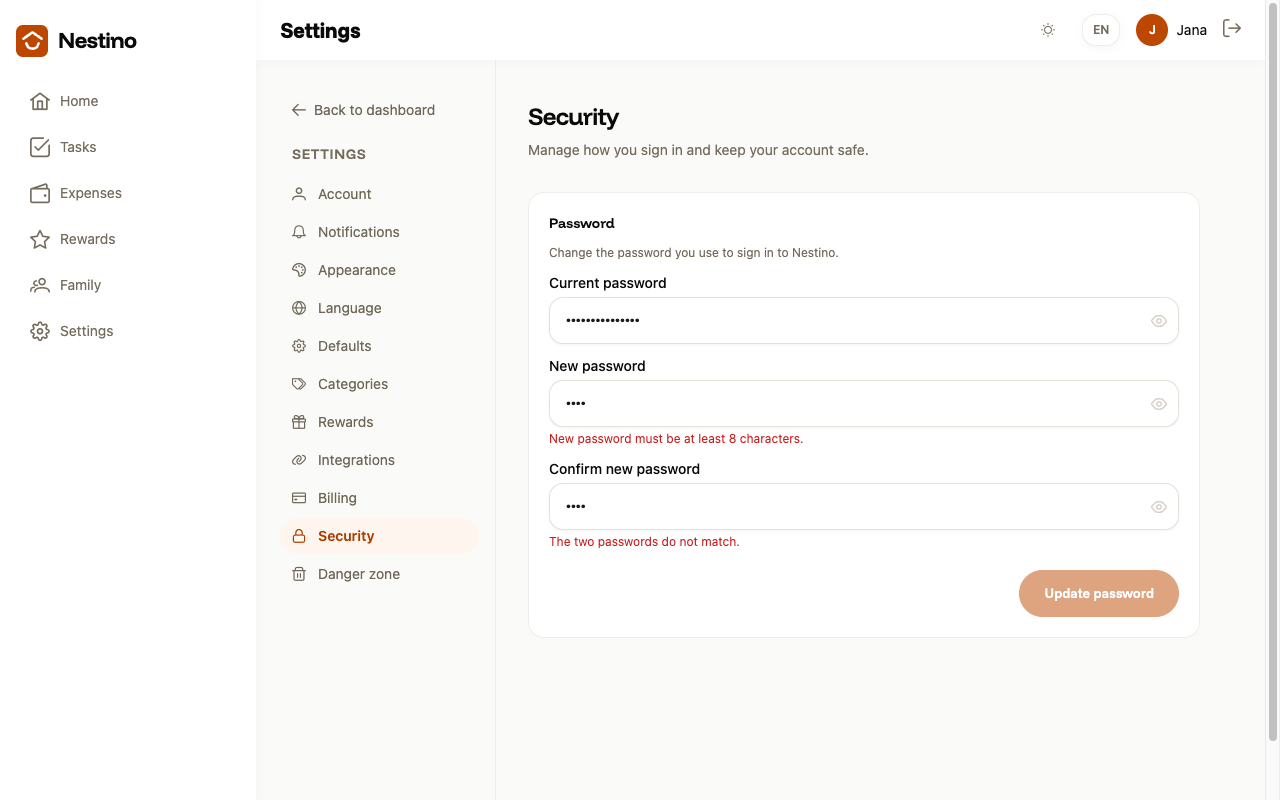
The form checks password length and match as you type: “New password must be at least 8 characters.” and “The two passwords do not match.” appear right under the relevant field, and the Update password button stays disabled until both errors are gone.
What happens after saving
- Click Update password.
- Nestino saves the new password and shows the toast “Password updated.”
- At the same time, every other device you’re signed in on gets signed out — you stay signed in here. A device you don’t have to hand right now signs itself out on its own once its current sign-in expires, within 15 minutes.
Sign out everywhere
The Sign out everywhere button immediately signs out this device too, the one you’re working on right now — unlike changing your password, after which you stay signed in here.
- Click Sign out everywhere.
- Confirm in the dialog “This signs you out on every device, including this one. Continue?” The Cancel button closes the dialog without changing anything.
- Nestino redirects you to the sign-in page — sign in again here too.
A forgotten child password
Just like Export and account deletion, Security is available to adults only — a child is redirected from both pages to the dashboard.