Pausing and resuming
Applies to 1.6 updatedPausing puts off a recurring payment or a recurring task template without losing any of its settings — resume it any time and everything picks up where it left off. Admins and parents can pause and resume; other roles never reach the Recurring screen at all.
Where to find pausing
- Open Expenses → Recurring.
- On the row for a payment or task template, click the three dots at the end of the row (Row actions).
- From the menu, choose Pause for an active item, or Resume for an item that’s already paused.
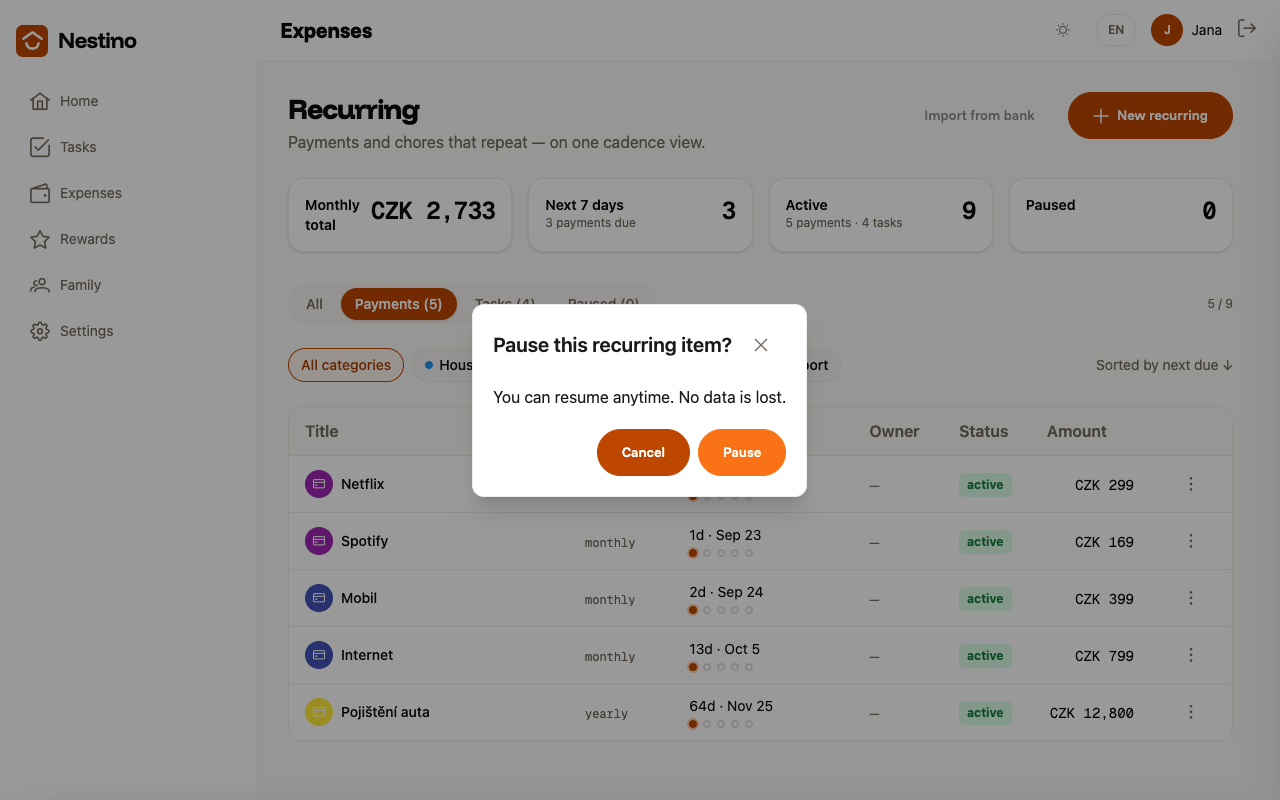
Pausing asks for confirmation: “Pause this recurring item?” and underneath it, “You can resume anytime. No data is lost.” You confirm with the Pause button, or close the dialog with the Cancel button. Resuming, by contrast, happens immediately after clicking Resume, with no confirmation.
What changes
| What | Active | Paused |
|---|---|---|
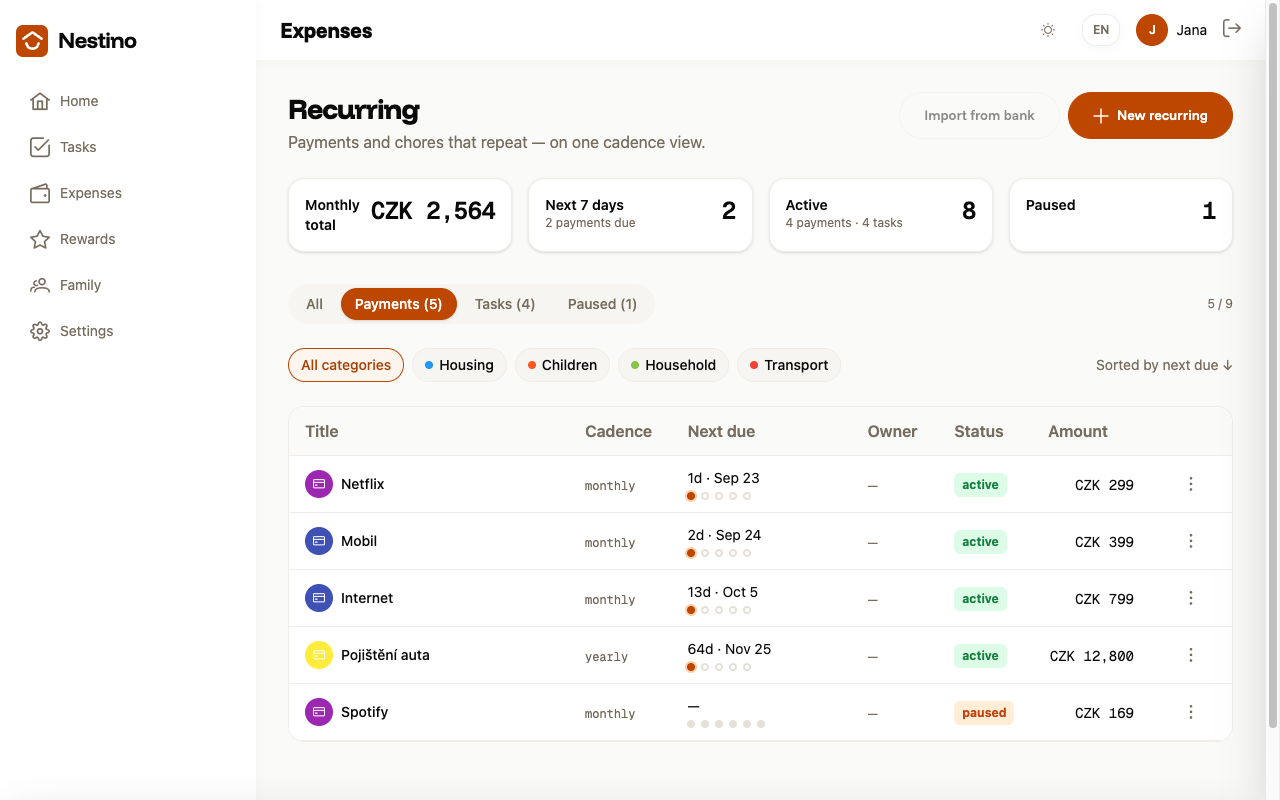
| Status | active (green) | paused (orange) |
| Next due | date of the next occurrence | ”—“ |
| List order | by date | drops to the bottom |
| Summary at the top | counted into Active | counted into Paused |
A paused item also shows up in the Paused tab, whether it’s a payment or a task template. For a recurring payment, its monthly amount is also subtracted from the Monthly total summary and from the count in Next 7 days.
For details on each type of recurring item — intervals and reminders for payments, frequency and assignment for task templates — see Recurring payments and Recurring task templates.