Notifications and push (including the iOS PWA)
Applies to 1.6 updatedNotifications let you know when something in the family needs attention — an assigned task, a request for approval, or an upcoming payment. Every family member can find and edit this page, children included, and each person manages only their own settings.
Where to find notifications
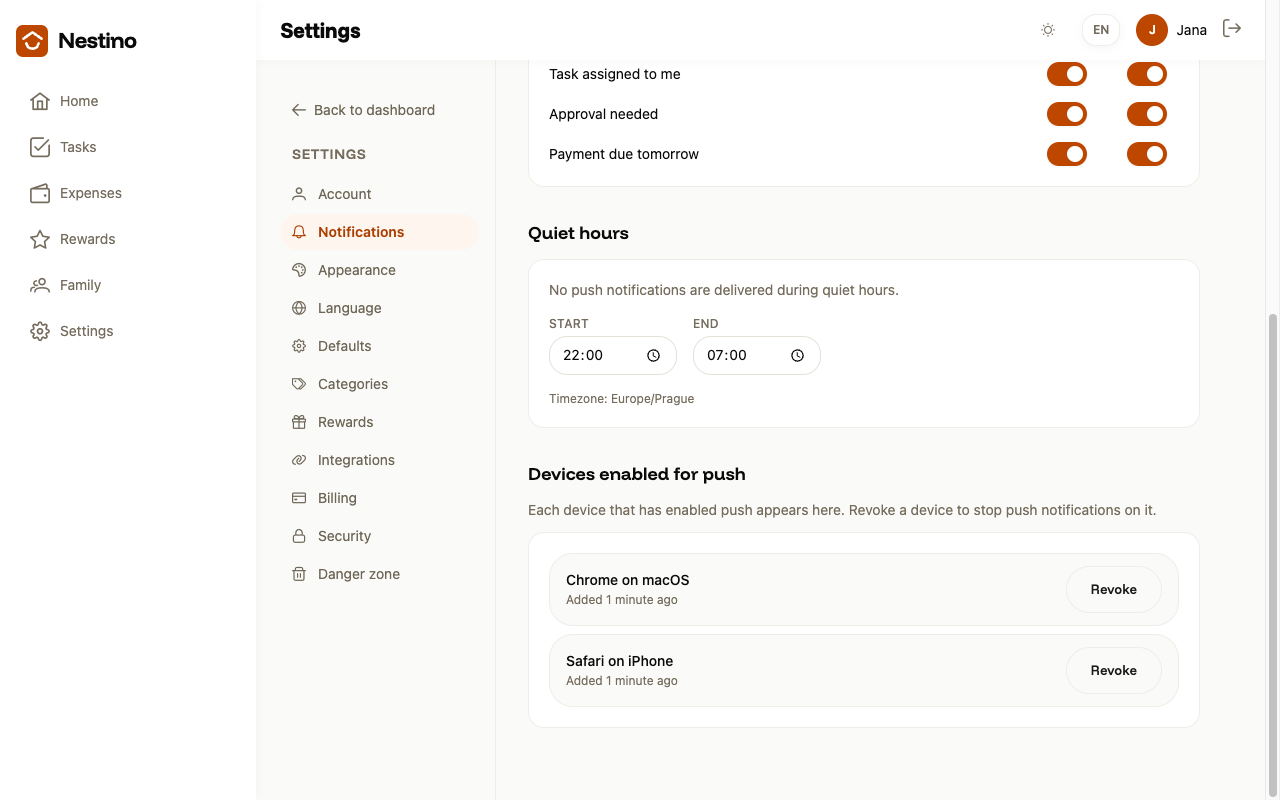
Open Settings → Notifications in the main navigation. The page has four sections: Push notifications, Per-event notifications, Quiet hours and Devices enabled for push.
Turning on push on this device
- In the Push notifications card, click Enable push on this device.
- Your browser shows its own permission request — confirm it.
- The card changes to Push is enabled on this device. You can turn it off at any time with the Disable on this device button.
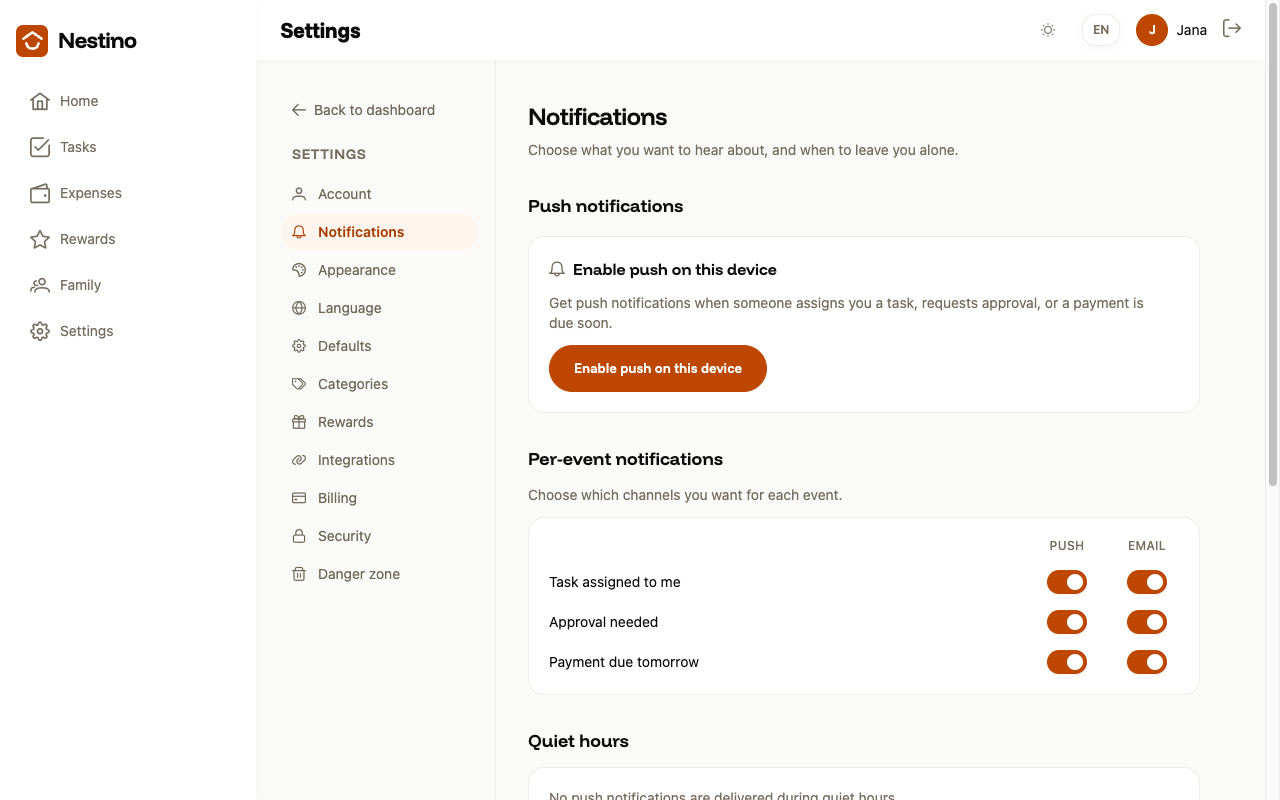
If you already declined the permission in your browser, the card shows that notifications are blocked instead of the button, and links you to your browser settings. A browser that doesn’t support push at all will say so directly in the card too.
iOS requires installing to the Home Screen
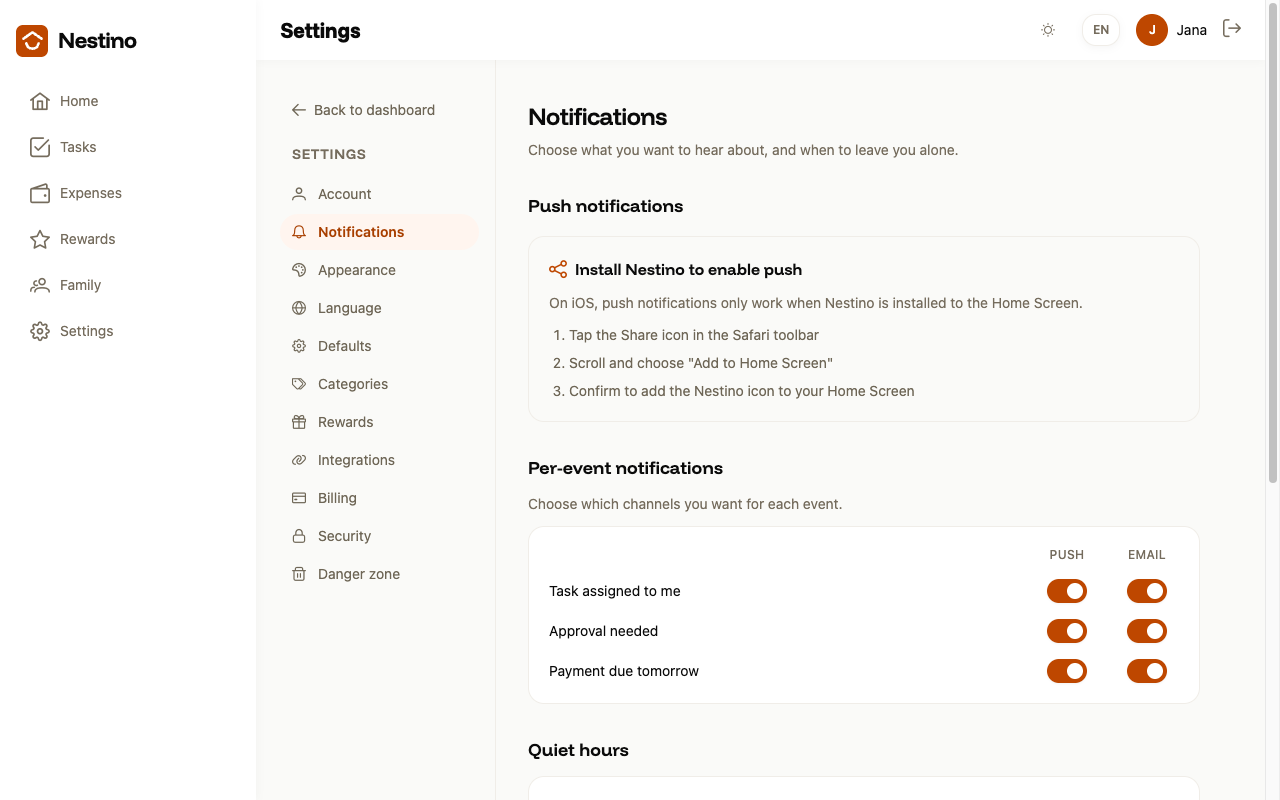
On iPhone and iPad, push only works in the app added to the Home Screen — in Safari itself you won’t see the enable button at all, only these steps:
- Tap the Share icon in the Safari toolbar.
- Scroll and choose “Add to Home Screen”.
- Confirm to add the Nestino icon to your Home Screen.
Per-event notifications
For each event separately, you choose whether you want Push, Email, both or neither. The toggle saves immediately when you click it — there’s no Save button on the page.
| Event | Push | |
|---|---|---|
| Task assigned to me | yes/no | yes/no |
| Approval needed | yes/no | yes/no |
| Payment due tomorrow | yes/no | yes/no |
These three events are the only ones you set up this way.
Quiet hours
The page’s third section, Quiet hours, determines when push shouldn’t be sent to you at all — it has its own article: Quiet hours.
Devices enabled for push
In the Devices enabled for push card you see every device where you’ve turned on push, with the time it was added and last active. The Revoke button next to a device opens a confirmation dialog — confirm with Revoke, or click Keep it and nothing happens. Revoking affects only that device; the others stay unchanged.