How points are earned and adjusted
Applies to 1.6 updatedThe Rewards page shows every family member’s balance and the transaction history it’s built from. The whole family can see it, but a child only sees their own balance. Only an admin or parent may adjust it by hand.
Where to find the balance
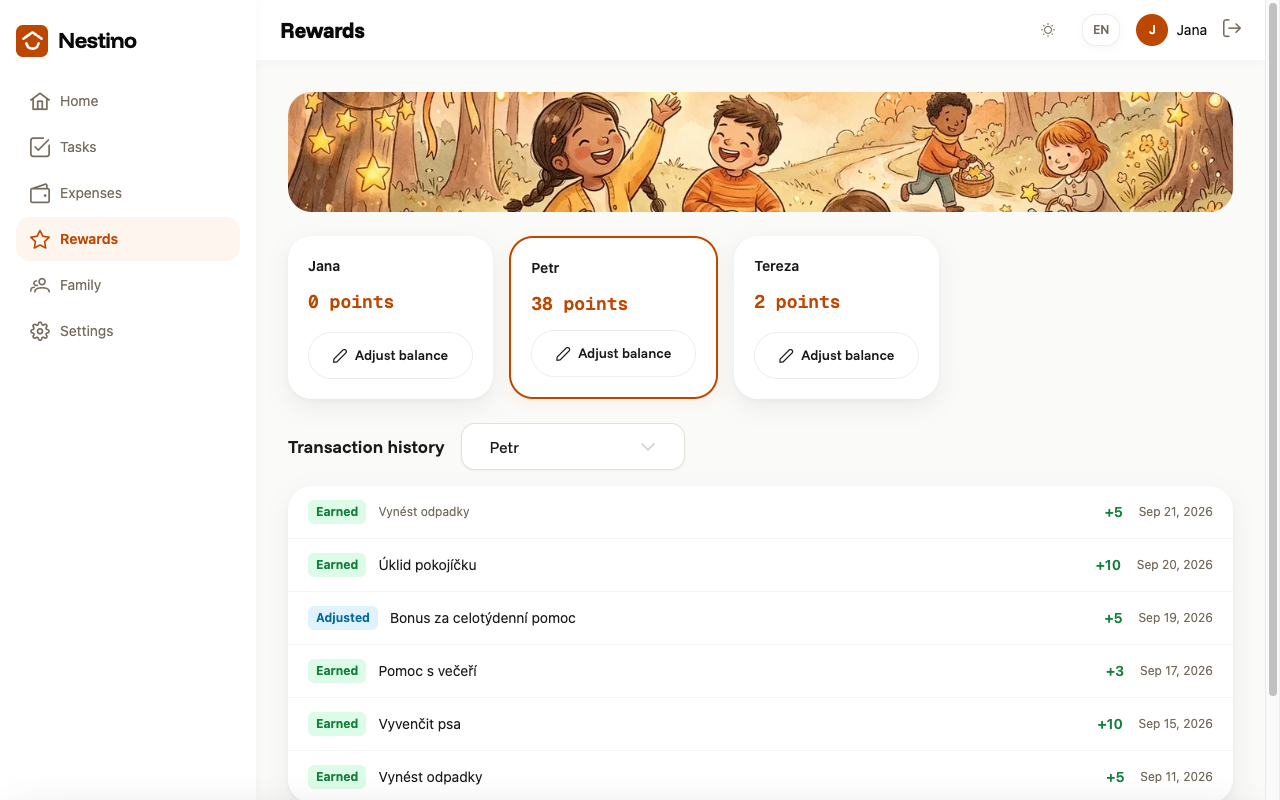
Open Rewards in the side navigation — a child finds the same page under My rewards. At the top is a card with each member’s balance and an Adjust balance button, and below it Transaction history with a member dropdown and a list of individual transactions.
When points are credited
Points aren’t credited when a task is completed, but when it’s approved — by clicking Approve in the Awaiting approval status. The only exception is a task an adult assigned to themselves: there, points are credited as soon as it’s completed, because it isn’t approved. The exact flow is described in Task lifecycle: Pending → In progress → Awaiting approval → Completed and Approving and rejecting tasks. Points for a single task are credited only once, even if it gets approved more than once.
In the history, such a transaction gets a green Earned badge, with an empty note and the task’s title in smaller gray text underneath. A task with no Reward value filled in, no assigned member, or in a family with the None mode credits nothing — how each mode works is described in Reward modes: none, points, currency, and recommended values by task difficulty in Default point values.
Adjusting the balance by hand
Besides approved tasks, an admin or parent can also adjust a balance by hand — for pocket money or a one-off reward, for instance — even on their own balance.
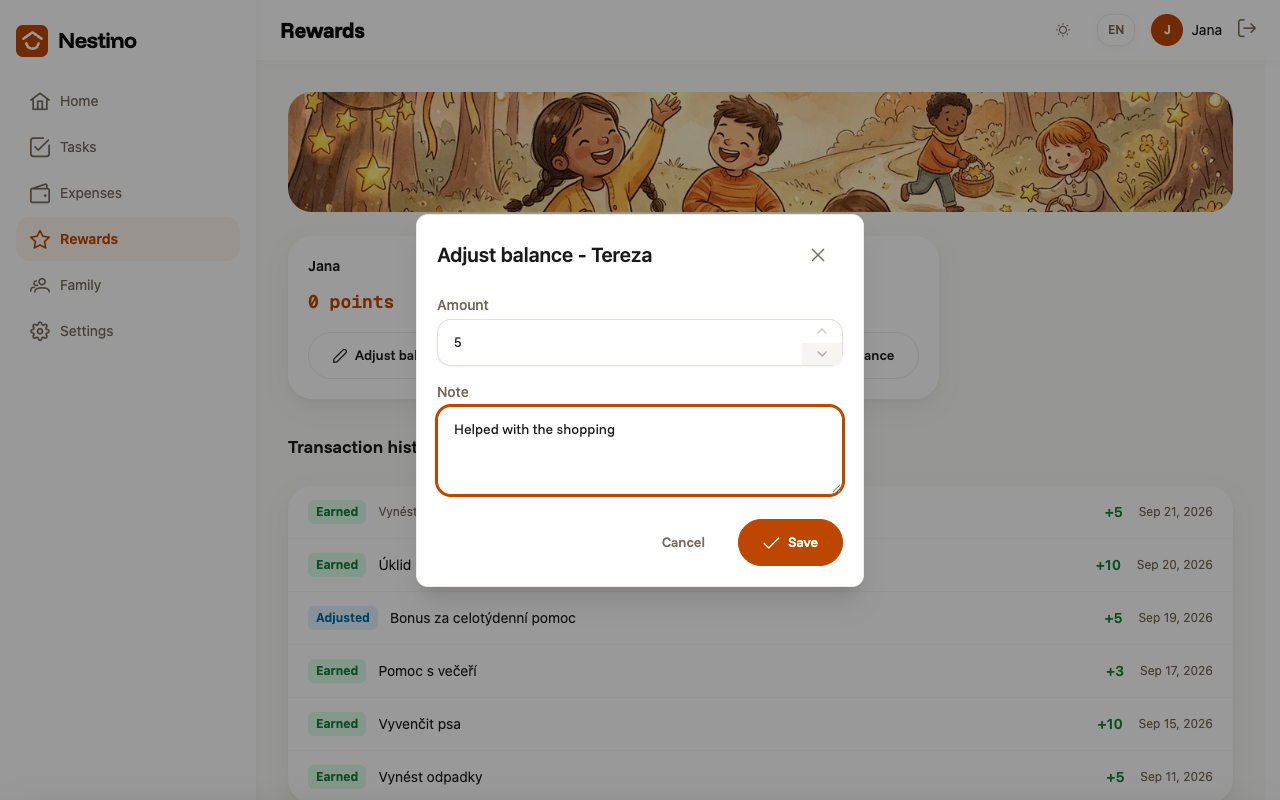
- On the member’s card, click Adjust balance.
- Fill in the Amount: a positive number adds points, a negative one subtracts them.
- Fill in the Note — both fields are required, and a zero amount won’t save.
- Click Save, or discard the change with the Cancel button.
After saving, the message “Balance adjusted successfully.” pops up and the card updates. In the history, the adjustment appears with a blue Adjusted badge and your note in place of the task title.
What a child sees
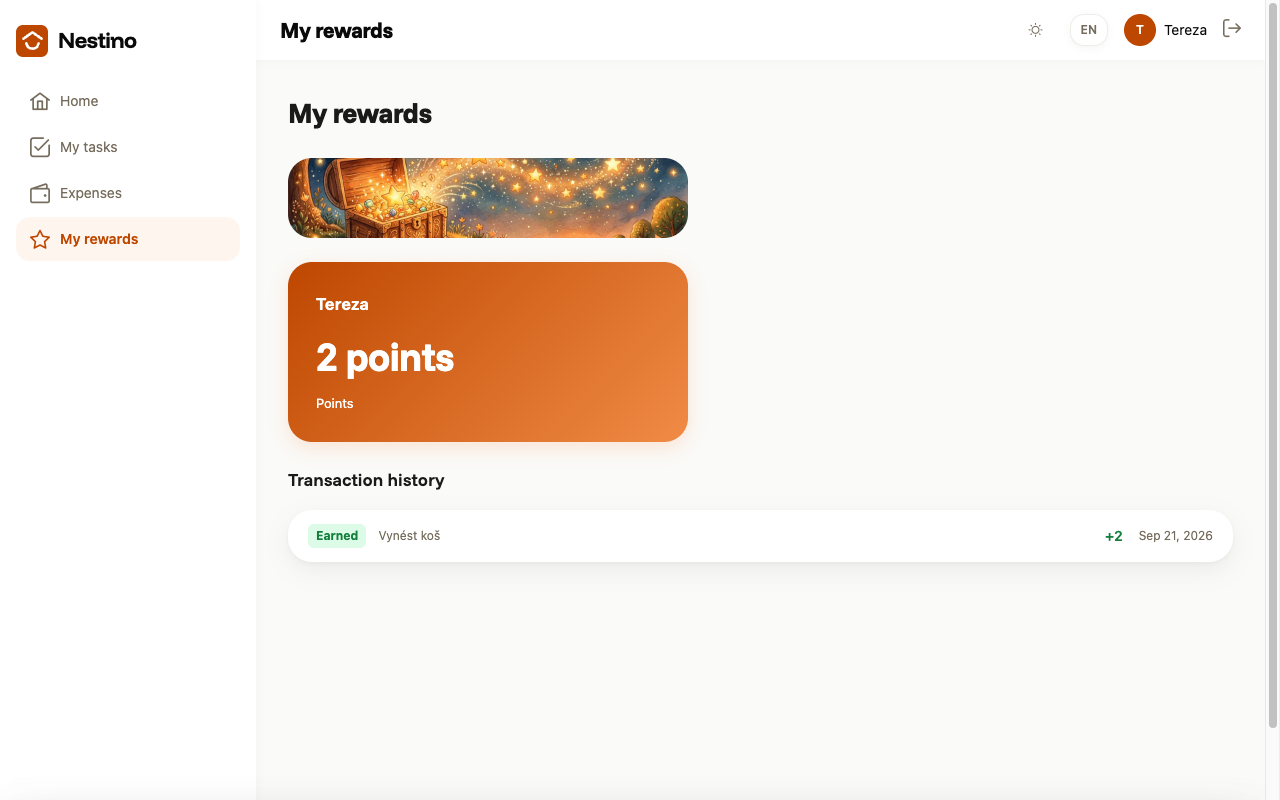
On My rewards, a child has only their own balance card and their own transaction history — no other members, no dropdown, and no Adjust balance button. They can’t adjust a balance, either their own or anyone else’s.
If a member has no transactions yet, they’ll see the No transactions yet message instead of the history, with a Create task button.