Creating and assigning a task
Applies to 1.6 updatedA task is Nestino’s basic unit: it has a title and can have a due date, a priority, a reward and one family member who is responsible for it. Tasks are created by admins and parents. Children, members and guests can see and complete tasks, but they have no create button.
Where to create a task
- Open Tasks in the main navigation.
- Click + Create task in the top right. If you have no tasks yet, the same button also sits in the empty list.
- The new-task form opens.
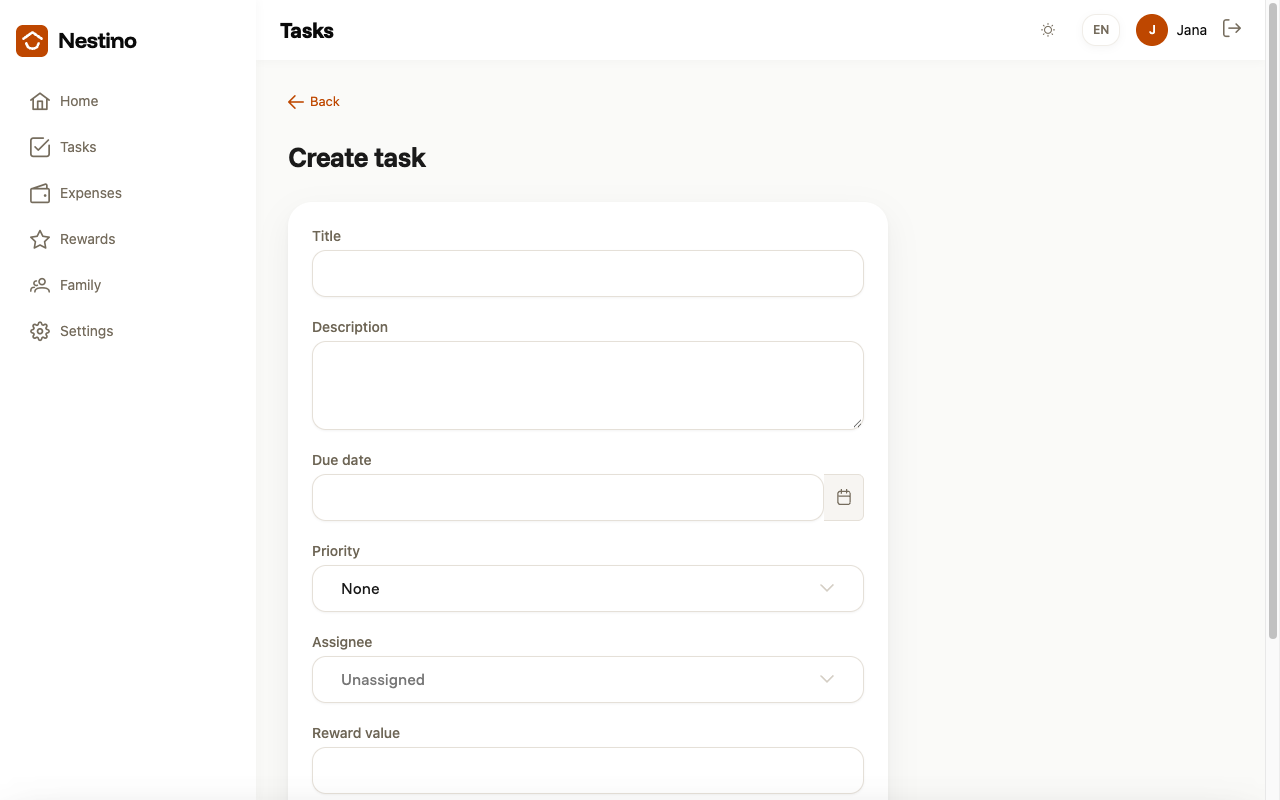
What to fill in
| Field | Required | What it means |
|---|---|---|
| Title | yes, at least 3 characters | A short name the whole family will see. |
| Description | no | Details — what exactly, where, what not to forget. |
| Due date | no | The date the task should be done by. |
| Priority | no | None, Low, Medium or High. The default is None. |
| Assignee | no | The family member who gets the task. Without a choice the task stays Unassigned. |
| Reward value | no | How many points (or how much money) completing it is worth. The field only appears when the family has rewards switched on. |
Assigning the task
Pick a family member in the Assignee field. The list contains every member of your family, including child accounts. The × in the field clears the choice and leaves the task unassigned.
You can change the assignee at any time: open the task from the list, click Edit task and choose another member. The change applies immediately.
Saving
Click Create task. Nestino takes you back to the task list and the new task appears in the Pending status. What happens next is described in Task lifecycle.