Calendar
Applies to 1.6 updatedThe calendar brings together tasks with a due date and upcoming recurring payments in one place — in a month view, or as a list by day. Anyone signed in can open it, children included, but what they see there differs by role.
Where to find the calendar
In the sidebar, click Calendar — you’ll find it between Expenses and Rewards. On mobile it’s the first item in the bottom bar under More.
What you’ll see in the calendar
At the top you switch between the Month and Agenda views, and the arrows next to the month name page backward and forward.
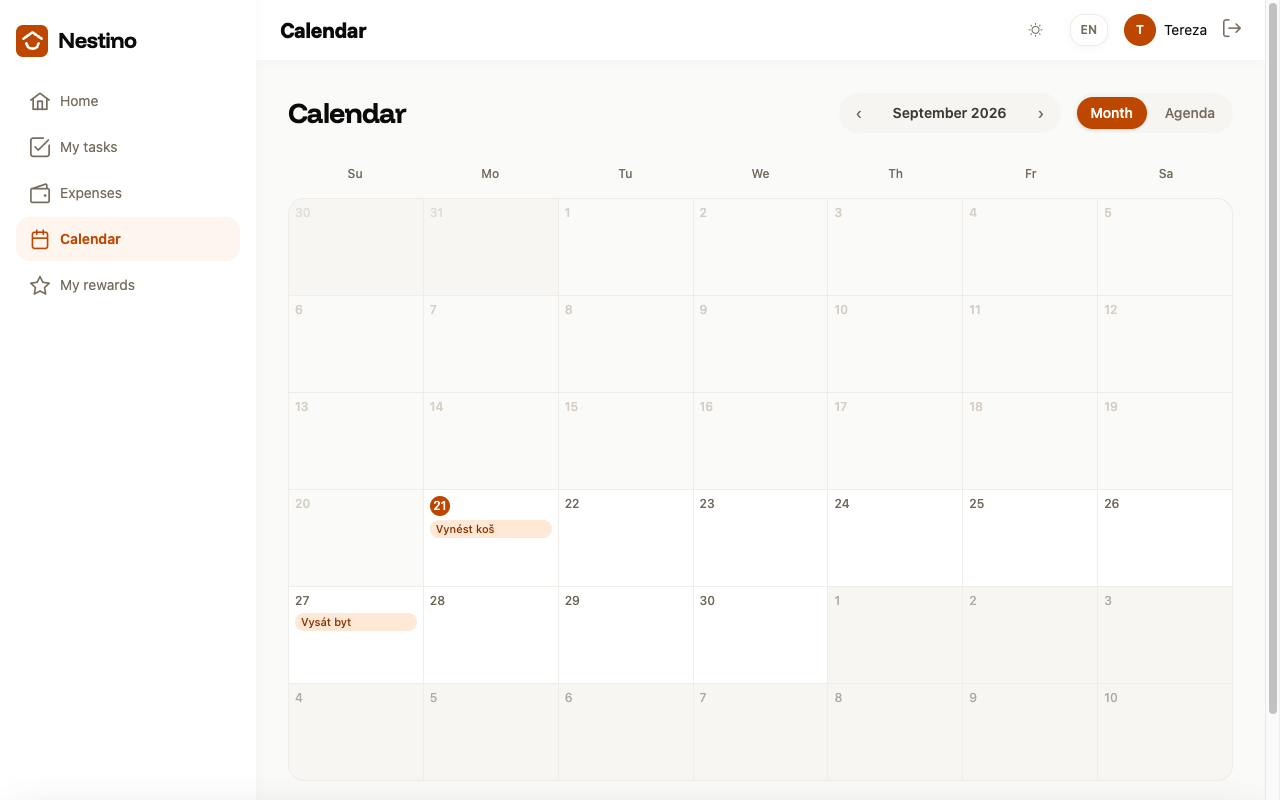
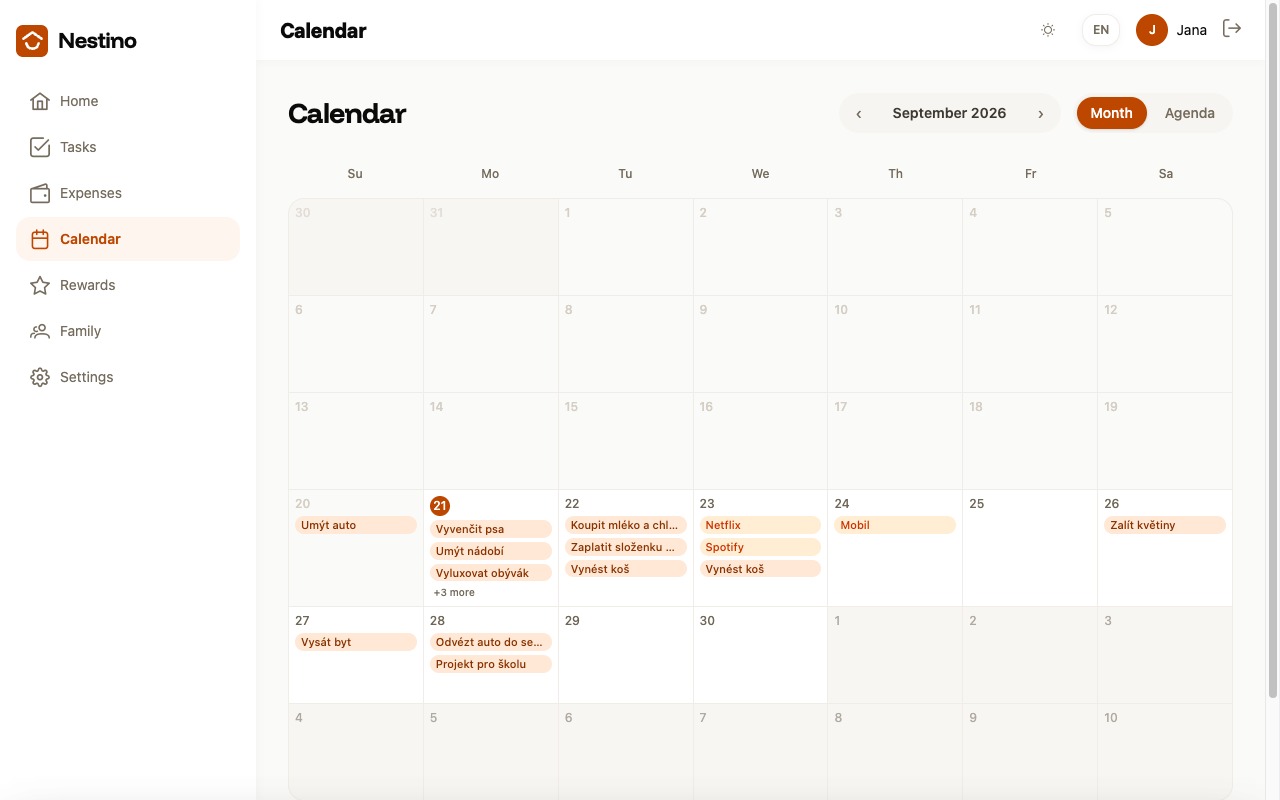
In the Month view you see the whole month as a grid; days outside the current month are greyed out, and today has a bold colour marker. The English week starts on Sunday, with weekday headers reading Su, Mo, Tu, We, Th, Fr, Sa. When a day has more events than fit, the rest are summarised as a link such as “+3 more”.
In the Agenda view, events are listed one below another, grouped by day — the group heading is “Today”, “Tomorrow”, or the full date.
| Event type | When it appears |
|---|---|
| Task | Only tasks that have a Due date filled in. A recurring task’s template doesn’t appear in the calendar by itself — you see the individual tasks it created. |
| Recurring payment | Only payments with a monthly, weekly, or every-two-weeks frequency. Daily and yearly payments never appear in the calendar, and the forward outlook is limited to 6 months. |
You manage recurring task templates in the Recurring task templates article, and individual payments in Recurring payments.
Clicking an event
Clicking a task opens its detail — the same page described in the Task lifecycle article.
What a child sees
No role guards access to the calendar, so a child gets into it just like an adult. But they only see their own tasks — no recurring payments are shown to them, so the family finances stay hidden. An adult family member, by contrast, sees the whole household’s tasks and every upcoming payment.