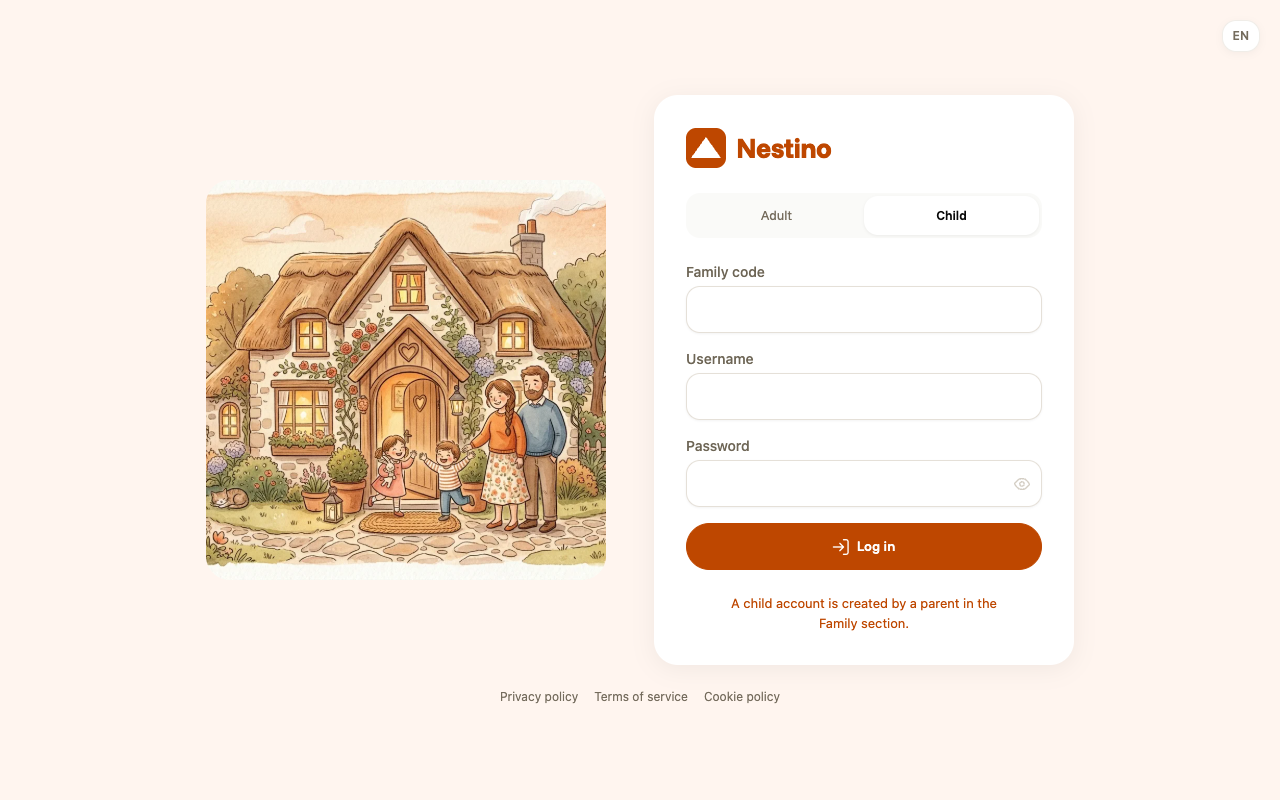
Creating a child account
Applies to 1.6 updatedA child account is the only way to sign a child into their own tasks and points in Nestino. It isn’t created by an email invite like an adult account — a parent or admin sets it up directly, and from that point the child has no email at all. Only an admin and a parent can create one.
Where you create a child account
- Open Family.
- In the top right, click Create child account.
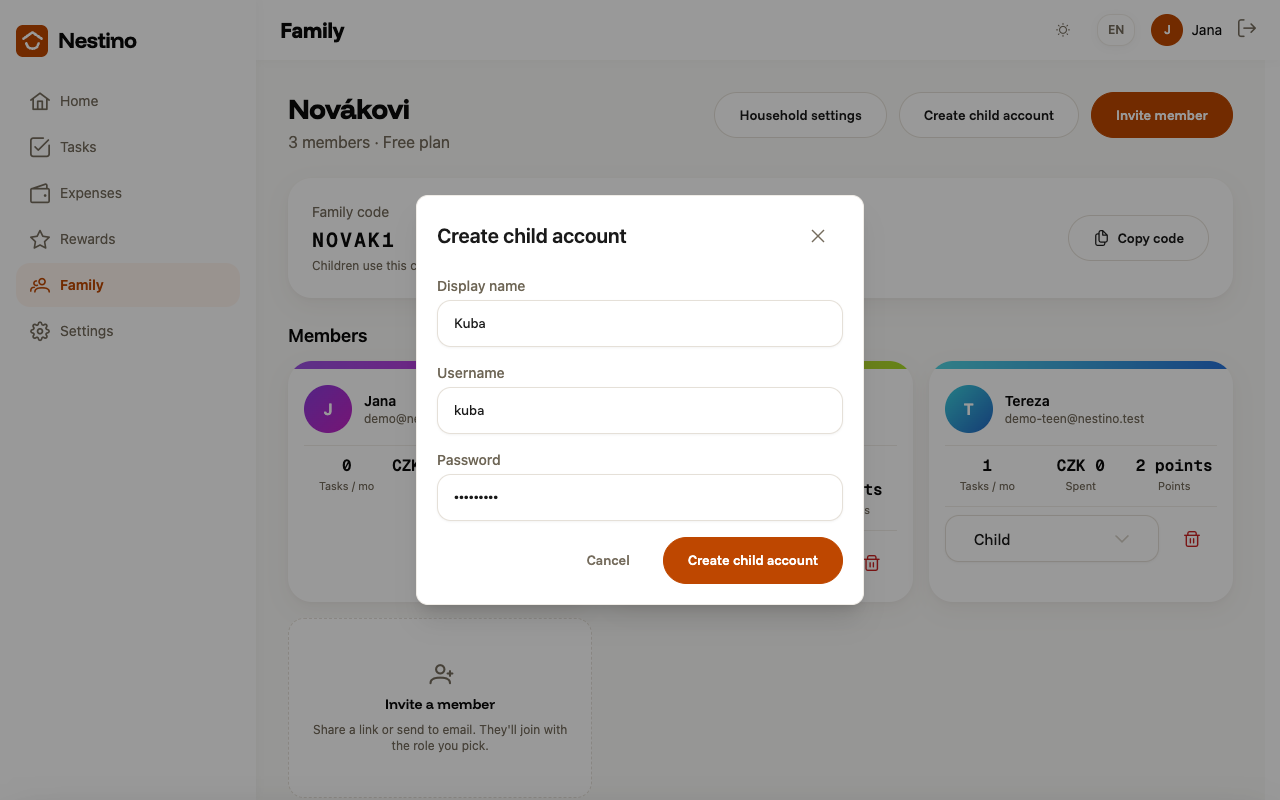
- A dialog with three fields opens.
What to fill in
| Field | Required | What it means |
|---|---|---|
| Display name | yes, 1–100 characters | The child’s display name, seen by the whole family. |
| Username | yes, 3–50 characters | Letters, digits, hyphen and underscore only. Must be unique within the family. |
| Password | yes, at least 8 characters | Must contain an upper-case and a lower-case letter and a digit. Set by a parent or admin, not by the child. |
There’s no email field anywhere — it’s exactly that absence that makes the account a child account.
Who creates the account, and who it belongs to
Creating a child account is allowed for the same people who can invite new members — the article Roles and permissions covers this in detail. Unlike an adult member, whom you add to the family with an invite (see Inviting a member), a child receives no invite and accepts nothing.
After saving: where to find the family code
After clicking Create child account the dialog closes right away, a “Child account created.” toast appears, and a new card for the child is added to the member list. The dialog says nothing else — it doesn’t repeat the username or show the family code the child will need to sign in.
You’ll find the family code in its own Family code card above the member list on the Family page, along with a Copy code button. The child’s sign-in steps, including the screen they’ll see, are described in Signing in — adult vs. child.