Roles and permissions — who can do what
Applies to 1.6 updatedEvery family member in Nestino has a role — Admin, Parent, Member, Child or Guest — and the role determines what they can do in the app. Whoever invites a member or creates their child account proposes the role, but only an Admin can change it later or remove someone from the family.
Where to find your role
The overview of roles and permissions is on the Family page (/family), in the Roles & permissions card below the member list. You can check your own role in Settings → Account too — the Family role field there is read-only, with a hint that your role is managed by the family admin.
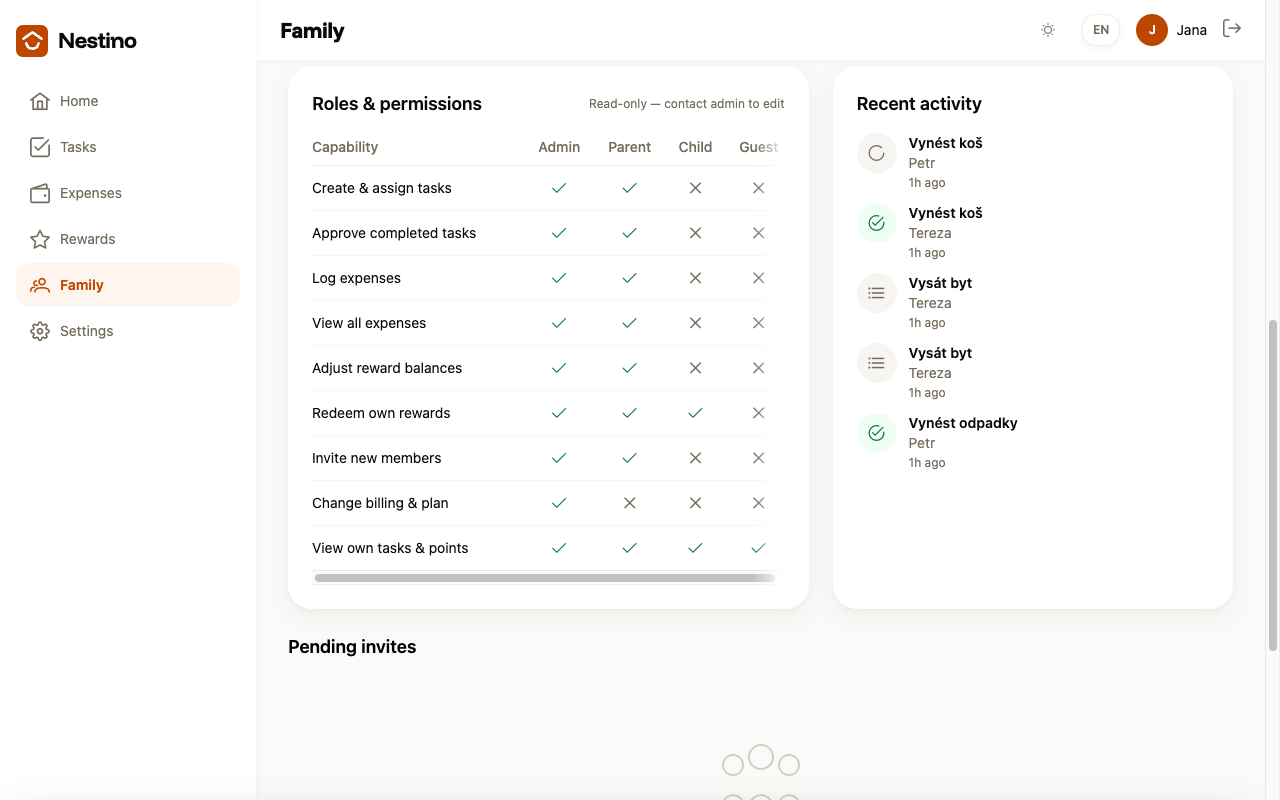
Roles in Nestino
The card on the Family page has columns for four roles. You get the Member role assigned the same way as the others — through an invitation or a role choice on a member — but it has no column of its own in the card, so we describe it in the text.
| Role | What it can do |
|---|---|
| Admin | Everything a Parent can, plus — as the only role — changing members’ roles, removing them from the family and changing the family settings, including the reward mode. |
| Parent | Creates and assigns tasks, approves their completion, logs family expenses, adjusts points and rewards, invites new members and creates child accounts. |
| Member | Sees the family overview, tasks and expenses, logs expenses and redeems their own rewards. Does not create or approve tasks, and does not manage categories or invitations. |
| Child | Sees and completes tasks assigned to them, and redeems their own rewards. Logs their own expenses and sees only those; does not create tasks and cannot access the Family section. |
| Guest | Cannot be assigned to anyone yet — the option does not appear in the invitation or in the role choice. |
Who can change what
Both an Admin and a Parent can invite new members and create child accounts — both see the Invite member and Create child account buttons on the Family page.
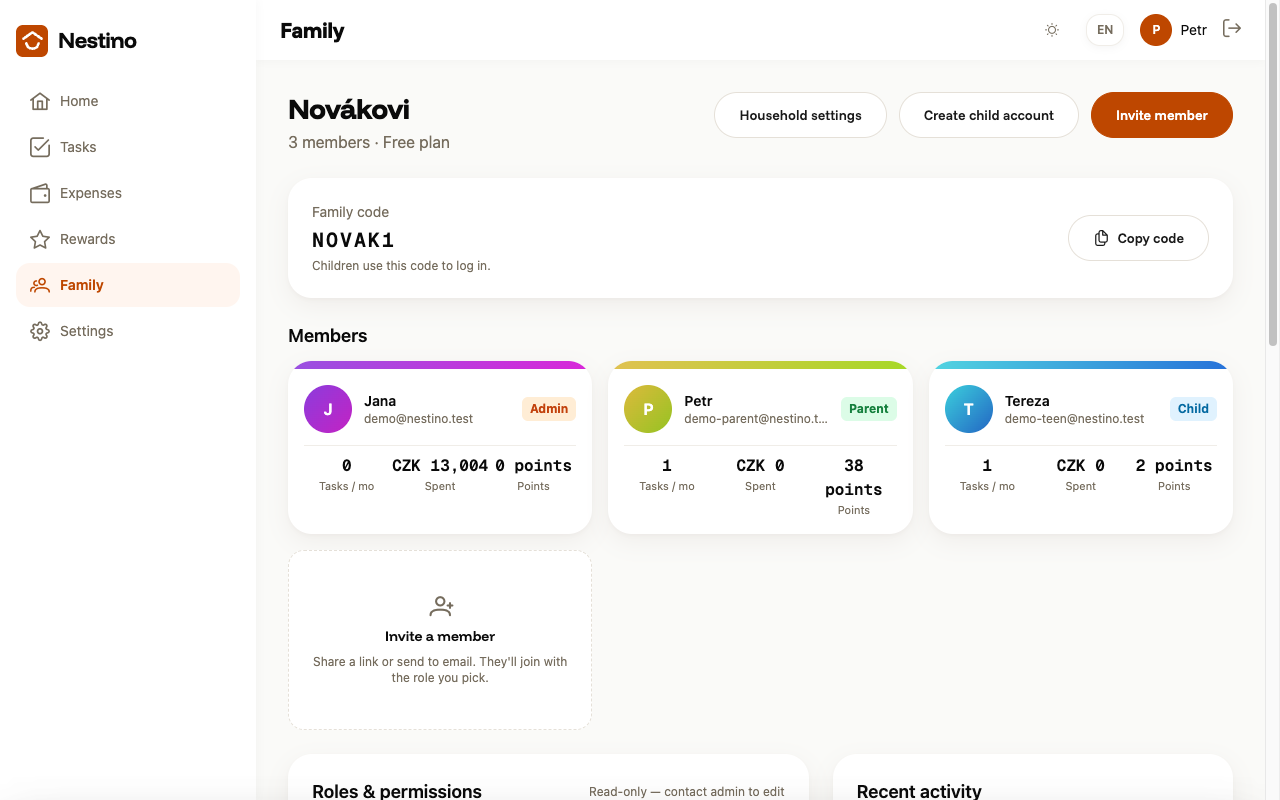
A family must always have at least one Admin, so an Admin cannot demote or remove themselves — their own card has no such options. To hand off the role, they first promote another member to Admin from that member’s card; only then can the original Admin be demoted or removed from the family.
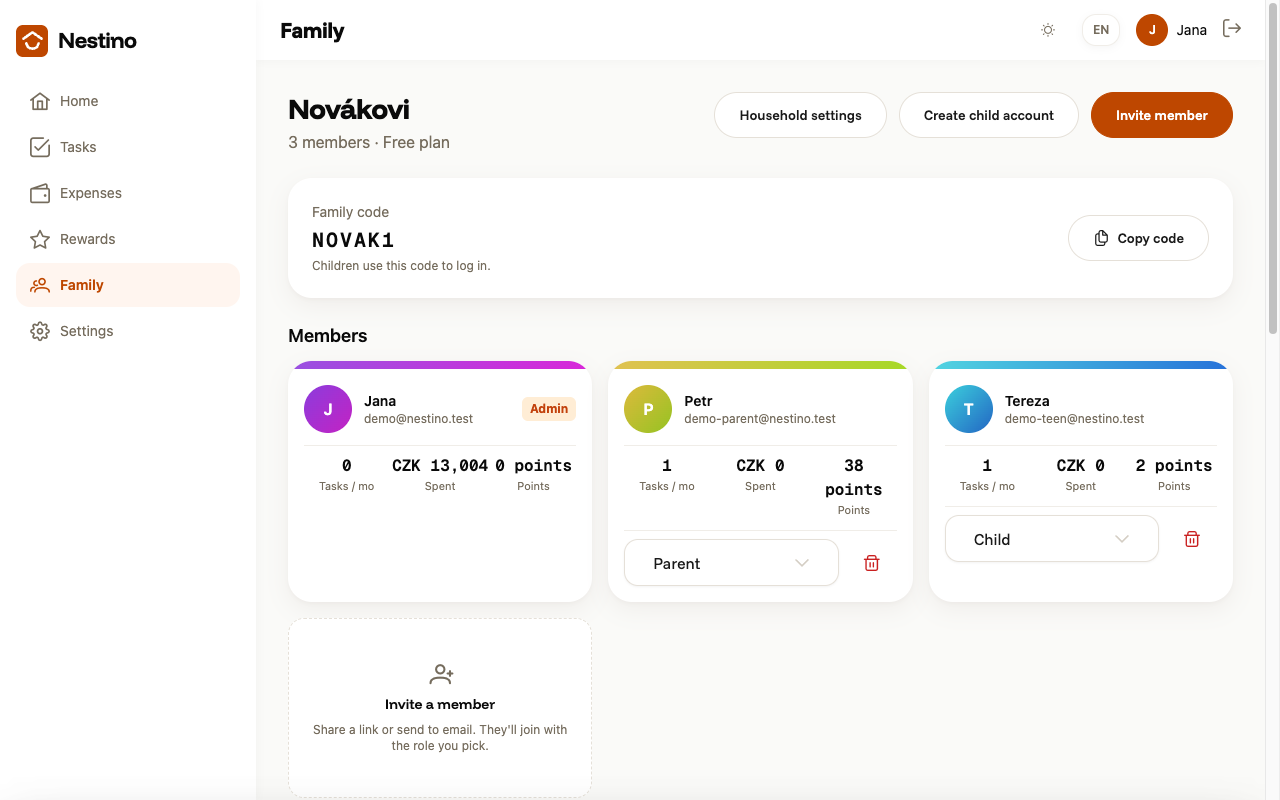
Where you set a role
You pick a new member’s role right when you invite them — see Inviting a member to the family. A child account gets the Child role automatically, with no email and no way to promote it to Admin — more in Creating a child account.