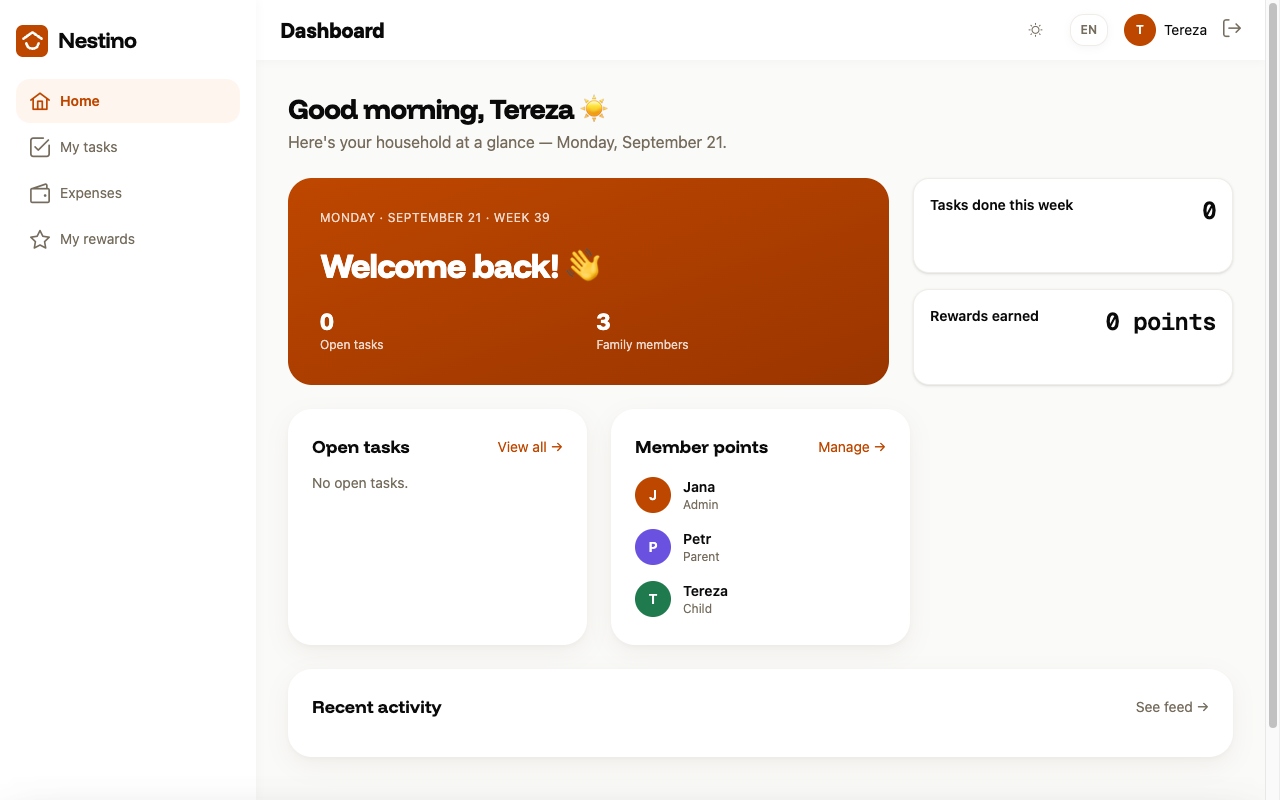
The dashboard: what it shows
Applies to 1.6 updatedThe dashboard is the page Nestino opens right after you sign in — it gives you an overview of the whole family’s tasks, expenses and rewards at a glance. Everyone sees it, but what’s on it depends on your role: a child gets a simplified version without some of the cards.
Where to find the dashboard
You’ll find it in the side menu under Home — it’s the page Nestino sends you to automatically after signing in. The full navigation overview is in Welcome to Nestino.
What you see at the top
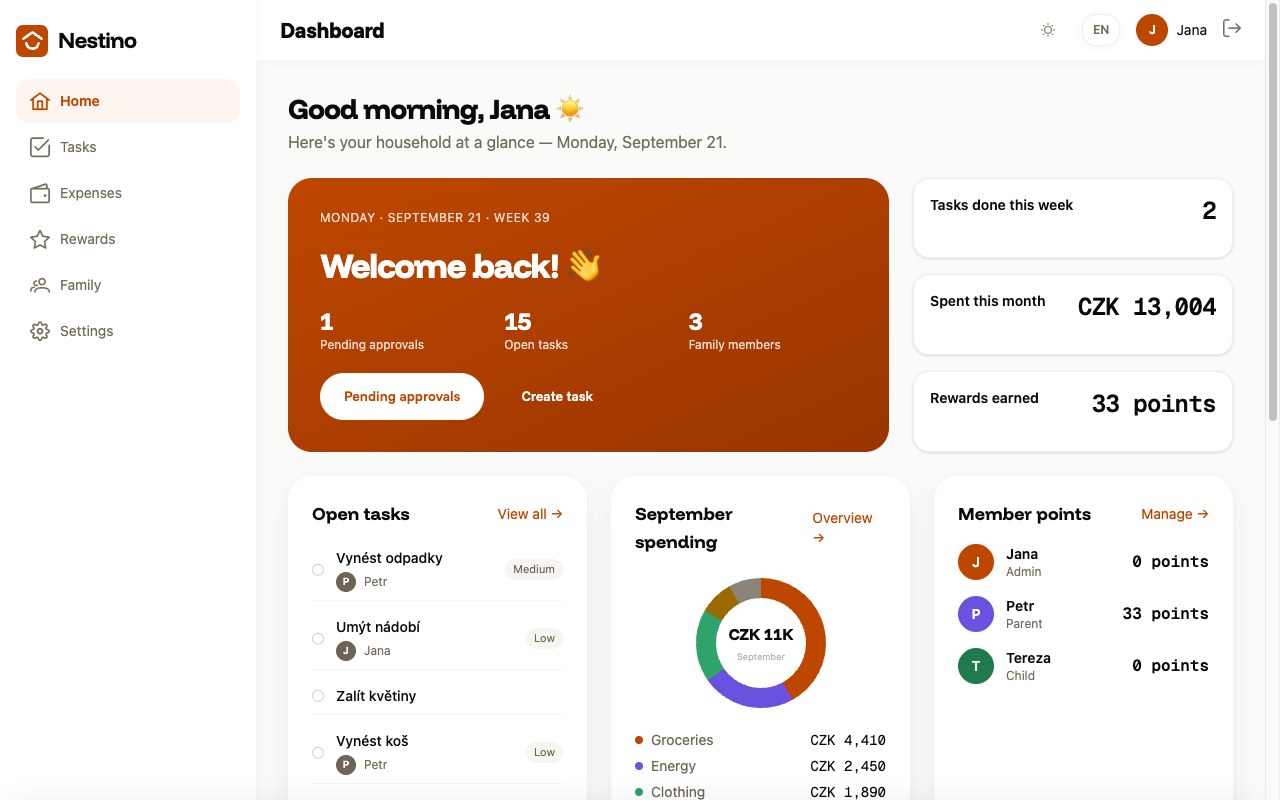
The greeting changes with the time of day and uses your name — “Good morning” in the morning, “Good afternoon” in the afternoon, “Good evening” at night. Below it is the subtitle “Here’s your household at a glance” with today’s date.
Next is an orange hero card with three numbers and two buttons:
- Pending approvals — tasks in the Awaiting approval status; the button takes you straight to their list.
- Open tasks — all tasks in the Pending or In progress status.
- Family members — the number of people in the family.
The Create task button opens the new-task form — see Creating and assigning a task.
To the right of the hero card are three smaller tiles: Tasks done this week (how many tasks were completed in the last 7 days), Spent this month (the total of expenses for the current calendar month) and Rewards earned (the total points or money across all members, not just for this month).
Three cards in the middle
| Card | What it shows | Link |
|---|---|---|
| Open tasks | The first 5 unfinished tasks | View all → to Tasks |
| This month’s expenses (e.g. “September spending”) | A chart with the share of the five biggest expense categories for the month | Overview → to Expenses |
| Member points | Points or money for each family member | Manage → to Rewards |
If the family doesn’t have any open tasks yet, the card shows “No open tasks.” instead of a list.
At the bottom of the page
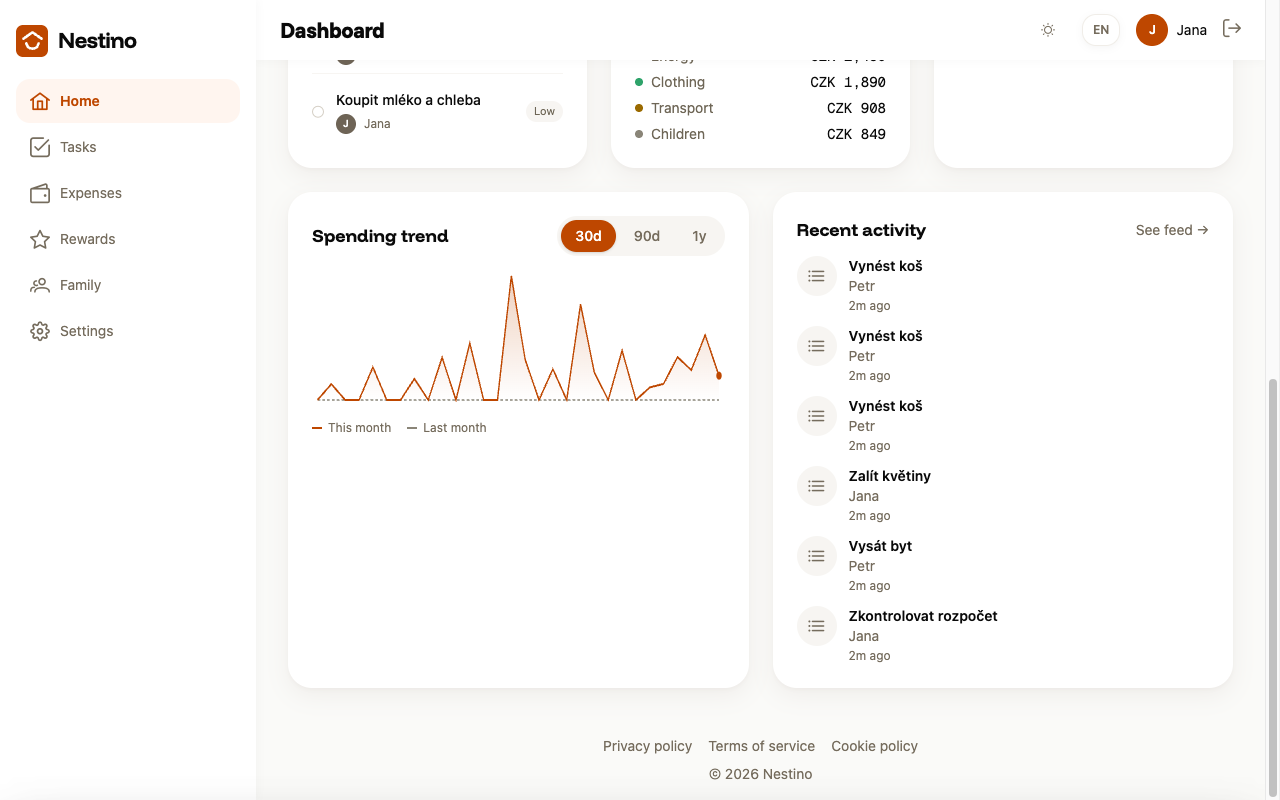
Below the cards you’ll find Spending trend — a chart with a toggle between 30, 90 days and 1 year, and a This month / Last month legend — and Recent activity with the family’s last six events.
Empty dashboard
If the family doesn’t have any tasks yet and has at most one member, the dashboard shows the “Let’s get started” onboarding guide instead of the cards, with three steps: invite family members, create the first task, and set up rewards. As soon as either condition stops being true, the dashboard goes back to the normal card view.
What a child sees
A child’s dashboard is simplified: they don’t see the Pending approvals counter or the buttons in the hero card, and they’re missing the Spent this month tile as well as the expenses and spending trend cards. The difference between the adult and child views is described in more detail in Signing in.