Inviting someone to your family
Applies to 1.6 updatedAn invite adds another adult member to the family. Both admins and parents can send one — the new member joins with the role you choose when you invite them.
Where to find the invite
- In the main navigation, open Family.
- Click Invite member in the top right. The same button appears on the dashed Invite a member card at the end of the member list, and in the empty state of the Pending invites section. All three open the same dialog.
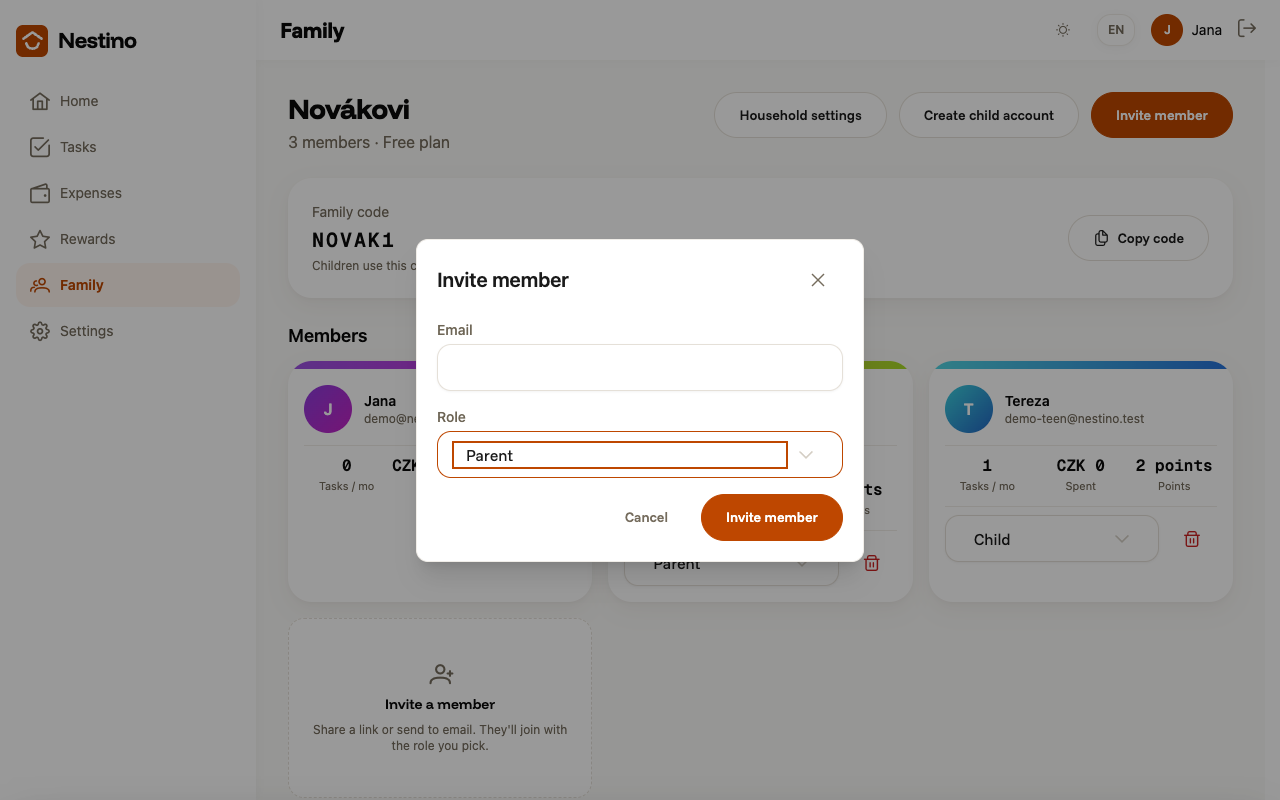
What to fill in
| Field | Required | What it means |
|---|---|---|
| no | Leave it empty and you get an invite with just a code, which you pass to the invitee yourself — no email gets sent anywhere. Fill it in and Nestino sends the invite to that address, though the code still shows in the dialog too. | |
| Role | no, default Parent | The list has only two options: Parent or Member. You cannot assign the Admin, Child or Guest role this way. |
Click Invite member and Nestino creates the invite.
What happens next
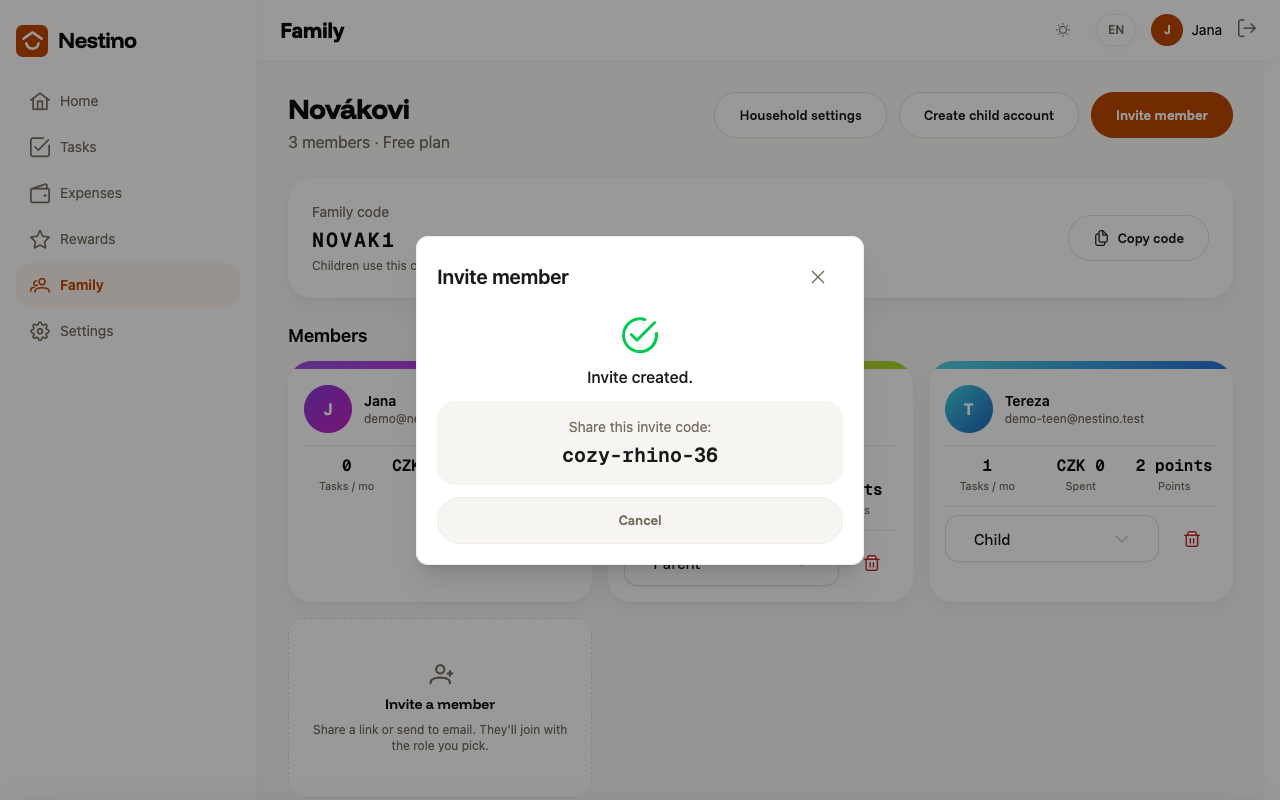
The dialog shows the message Invite created. and the invite code, which you share with the invitee — whether or not you filled in an email. The invite also appears in the Pending invites list with its role and expiry date; it’s valid for 14 days from creation.
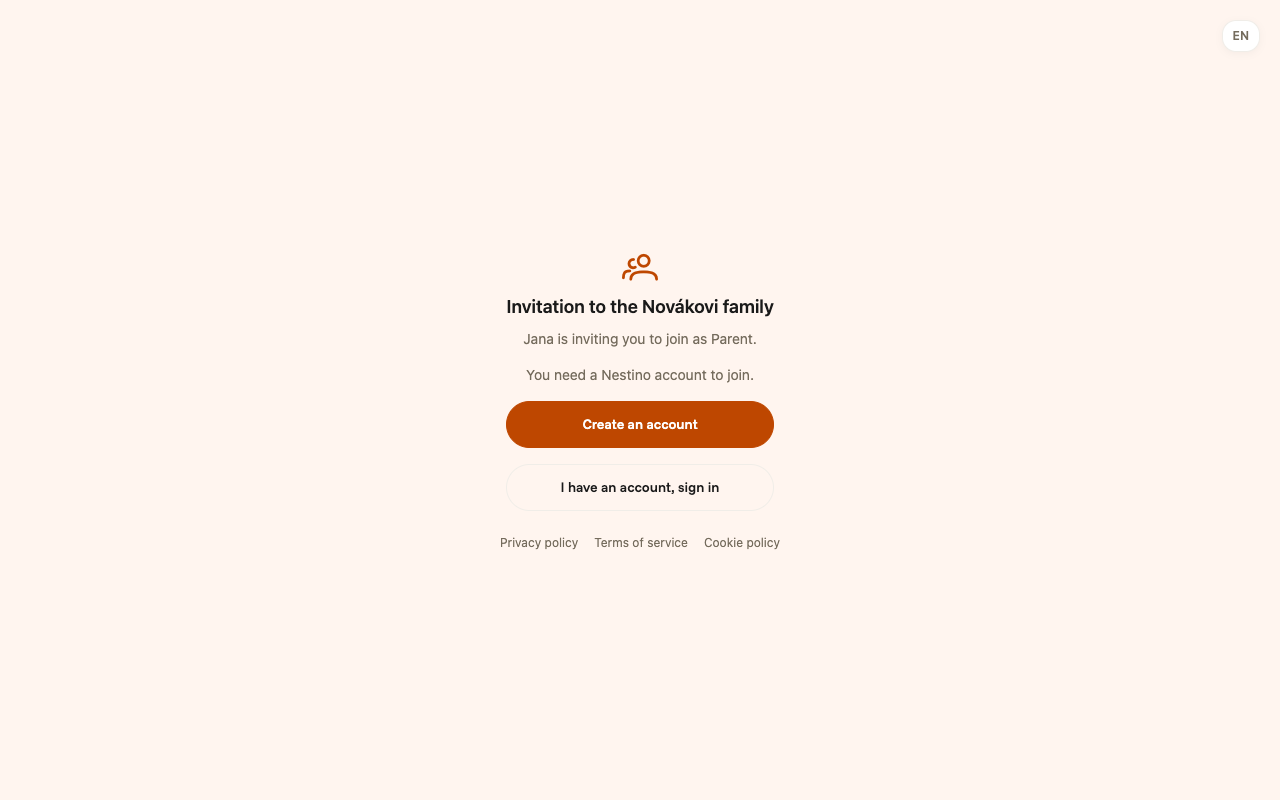
The invitee opens /invite/<code> (from the email, or from you) and — if they don’t already have a Nestino account — creates one, otherwise they sign in to their existing one. Only after signing in do they actually join the family.
Only an admin can remove a member from the family or change their role later. What everyone in the family is allowed to do is covered in Roles and permissions.