Recurring task templates
Applies to 1.6 updatedA recurring task template creates new tasks by itself according to the frequency you choose — daily, weekly or once a month — so regular household chores don’t need to be entered again each time. Templates can only be created, edited and deleted by admins and parents.
Where to find a template
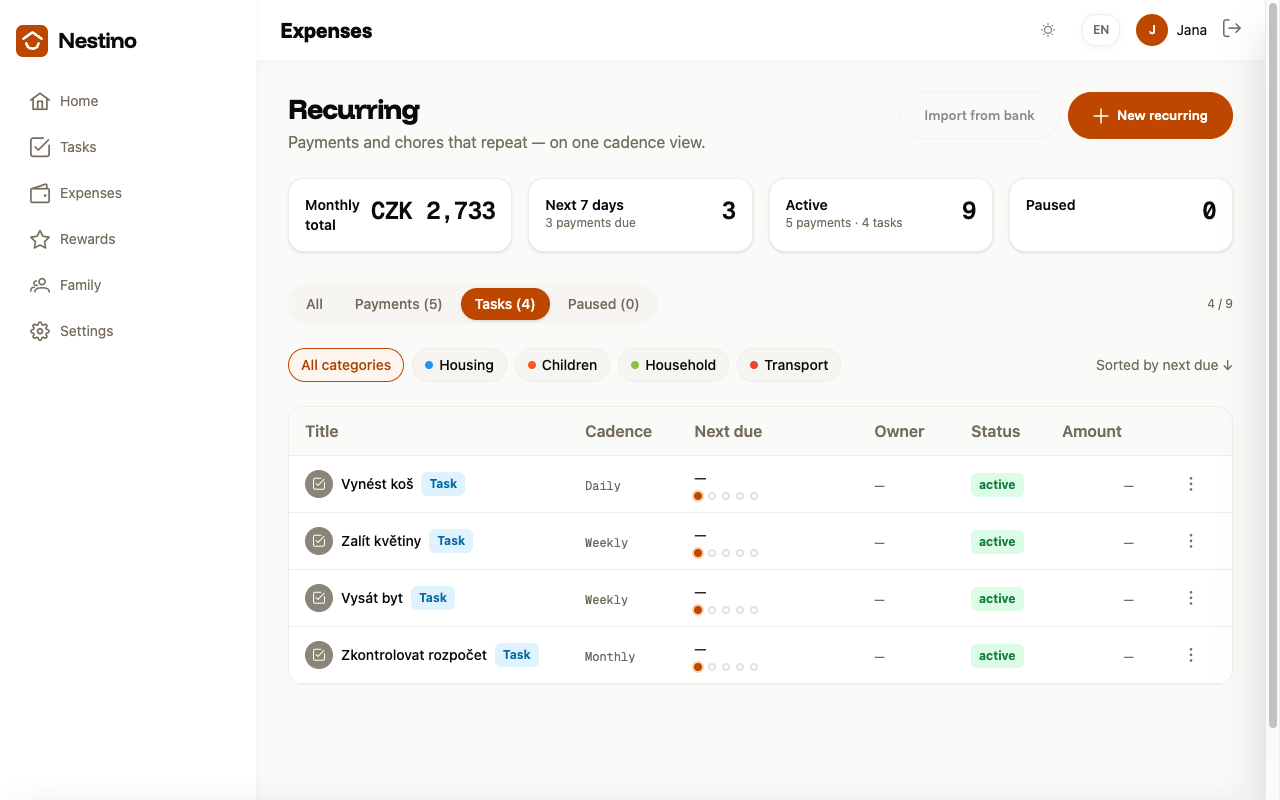
- In the main navigation, open Expenses and click the Recurring button (on mobile: More → Recurring). The Recurring page opens.
- Switch to the Tasks tab.
- Click New recurring and pick Recurring task from the menu.
The New recurring task dialog opens.
What to fill in
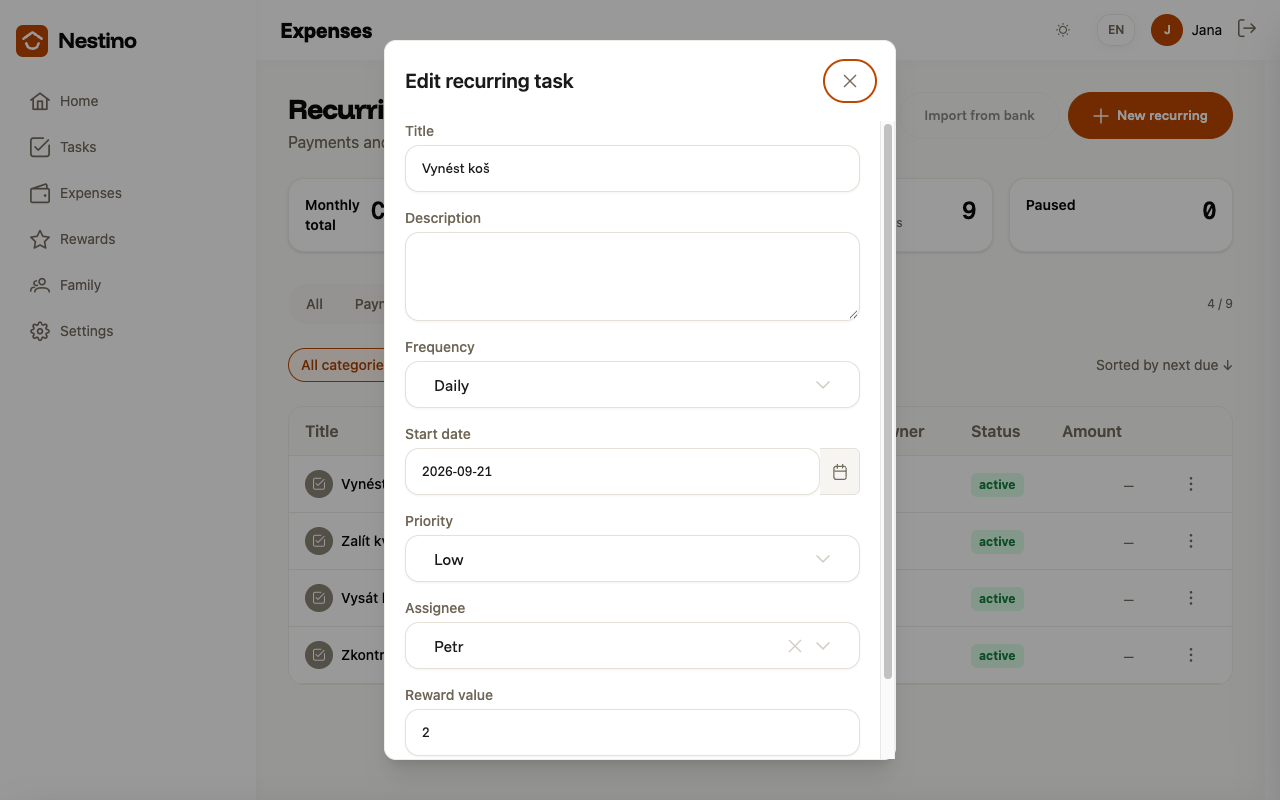
| Field | Required | What it means |
|---|---|---|
| Title | yes | The short name every task created from this template will carry. |
| Description | no | Details about the task. |
| Frequency | yes | Daily, Weekly or Monthly — the template offers no other options. |
| Day of week | Weekly only | Which day of the week the task should appear on. |
| Day of month | Monthly only | Which day of the month (1–31) the task should appear on. |
| Start date | yes | When the template starts creating tasks. |
| Priority | no | None, Low, Medium or High. The default is None. |
| Assignee | no | The family member, including a child account, who will be responsible for the created tasks. |
| Reward value | no | How many points (or how much money) completing it is worth. The field only appears when the family has rewards switched on. |
Editing, pausing and deleting
At the end of the template’s row, click ⋮ (Row actions):
- Edit opens the same form, this time titled Edit recurring task and pre-filled with the template’s values.
- Pause / Resume temporarily stops or restarts task creation from the template. The flow and confirmation dialog are exactly the same as for payments — described in detail in Pause and resume.
- Delete removes the template permanently once confirmed in the Delete template dialog.
What happens next
According to the template’s frequency, Nestino creates individual tasks over time — you’ll find them in the Tasks overview and in the Calendar, together with the due date and assignee set by the template.