Task lifecycle: Pending → In progress → Awaiting approval → Completed
Applies to 1.6 updatedIn Nestino, a task moves through statuses from creation to completion. Who moves the task forward depends on who’s responsible for it and who they are: the assignee starts and completes it, while approval is given by an admin or parent.
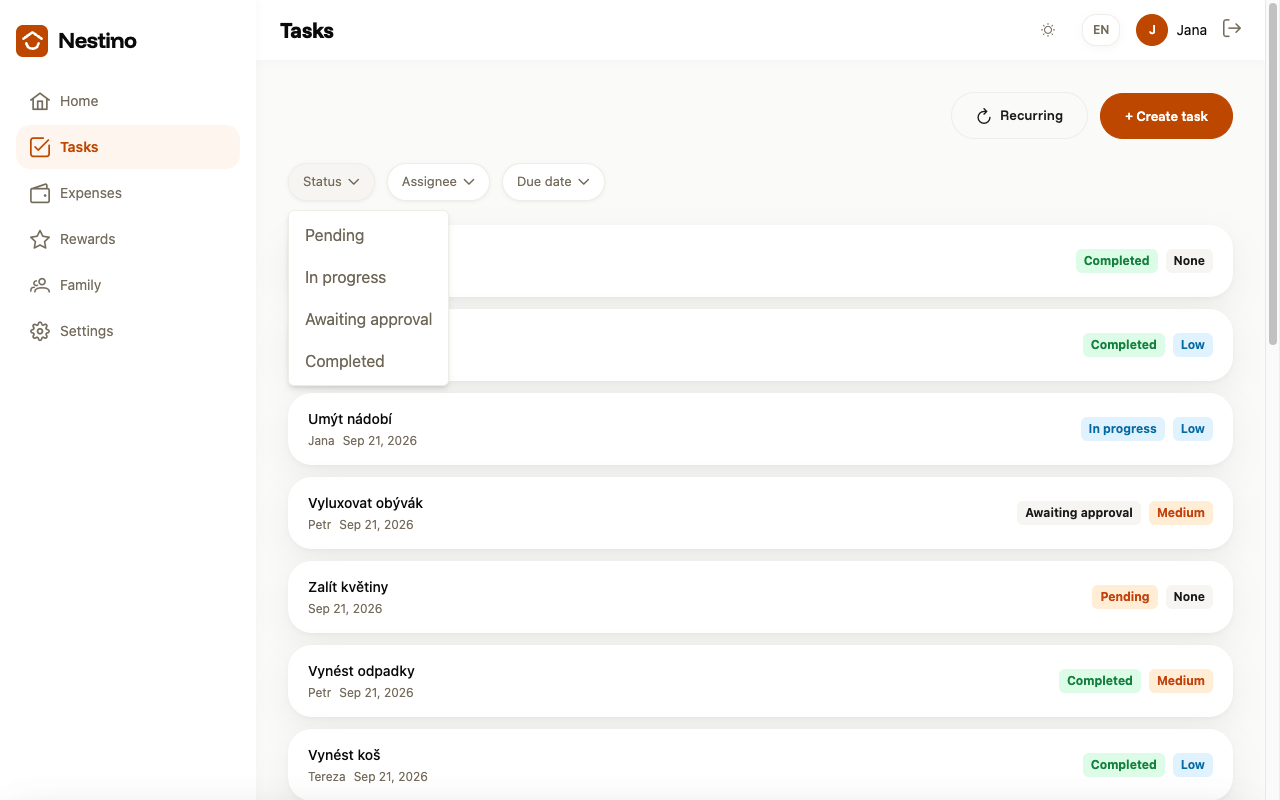
Where you see the status
- Open Tasks in the main navigation (a child has the same page under the name My tasks).
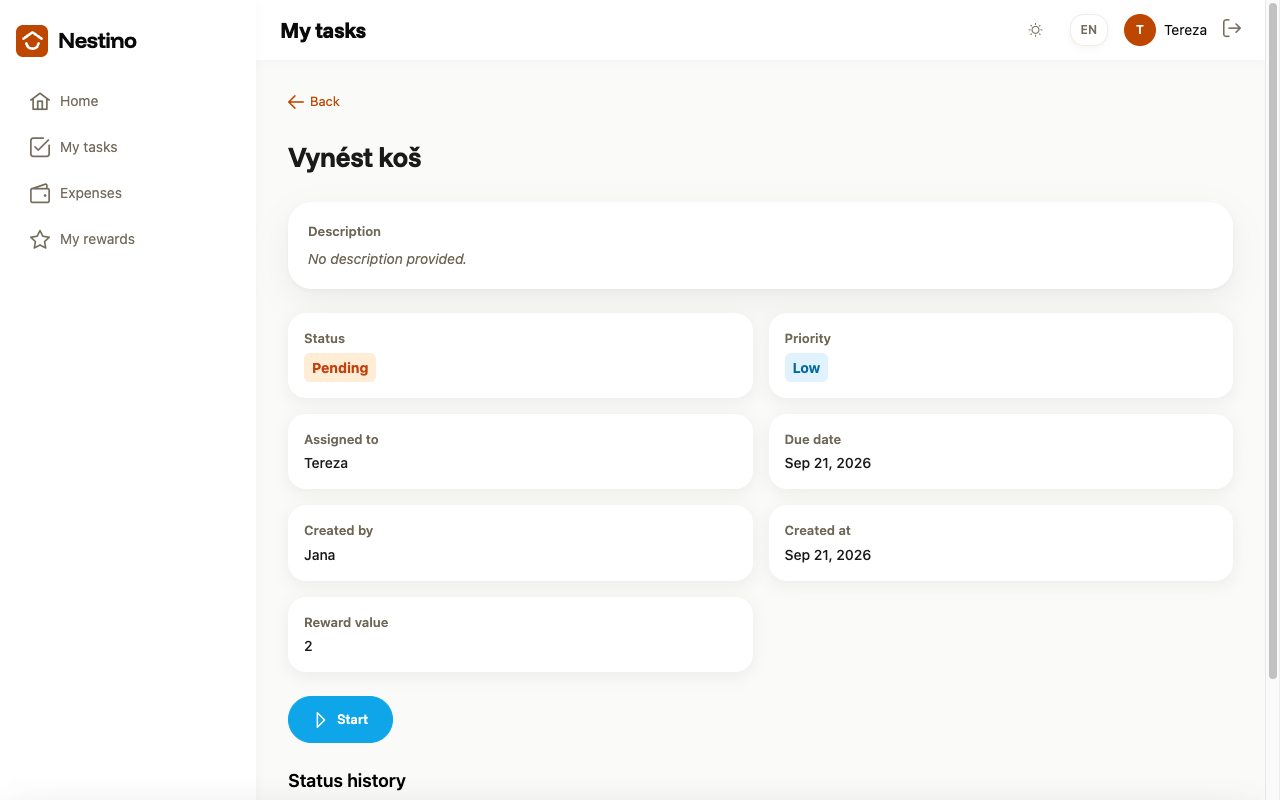
- Click a task row.
- The task page has the Status card at the top, buttons for the current action below it, and Status history right at the bottom.
In the task list, the status shows as a colored tag on each row, and you can filter by it there too.
Task statuses
| Status | What it means |
|---|---|
| Pending | The task has been created and is waiting for the assignee to start it. |
| In progress | The assignee is working on the task. |
| Awaiting approval | The child has finished the task and it’s waiting to be reviewed by an admin or parent. |
| Completed | The task is done. |
Who moves the task along
The path differs depending on who’s assigned:
- Child as the assignee: Start → In progress → Complete → Awaiting approval. The child doesn’t do anything further after that — approving or rejecting is up to an admin or parent, and it can be either of them, not necessarily the one who created the task.
- Admin or parent as the assignee: Start → In progress → Complete → straight to Completed. Approval is skipped — an adult doesn’t confirm their own work to anyone.
So the full four-status chain in this article’s title only happens for a task assigned to a child. For an adult, the task only passes through three statuses.
What approving and rejecting actually looks like is covered in its own article, Approving and rejecting tasks.
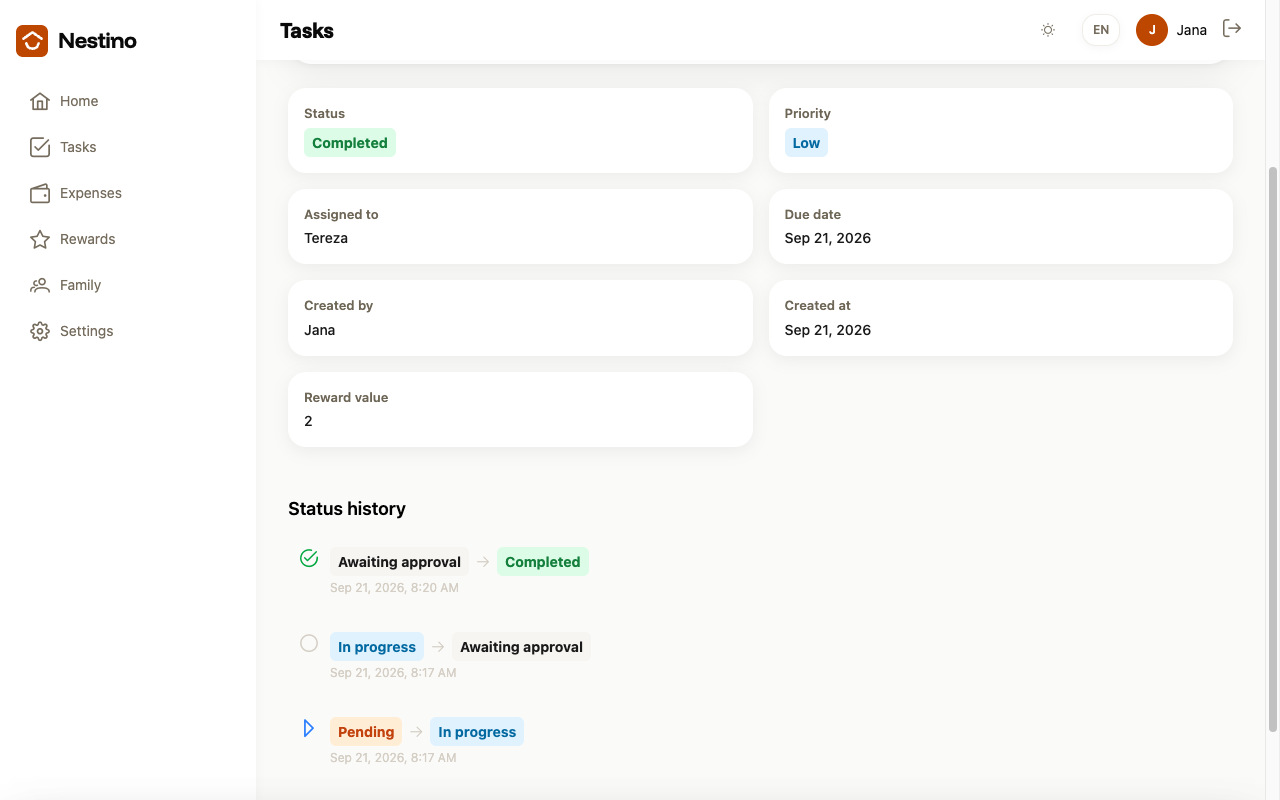
Status history
Every transition is recorded in Status history as a pair of statuses with an arrow (for example “Pending → In progress”) and a date and time. The history doesn’t show who made the change — only what happened and when. Newly created tasks that no one has started yet have no entries here.
Once a task reaches the Completed status, it can’t be moved back. A task can only return to Pending by being rejected while it’s Awaiting approval — more on that in the article about approving tasks.