Expense categories
Applies to 1.6 updatedCategories determine what an expense gets filed under — you’ll see them in the picker when logging an expense, in filters, and in the pie chart on the Monthly overview page. Nestino offers 15 preset categories, and a family can add custom ones alongside them. Only admins and parents can manage categories — adding, editing and deleting the custom ones.
Where to find categories
- On mobile, open the More sheet and tap Expense categories.
- On a computer, go to Settings → Categories and click Open categories.
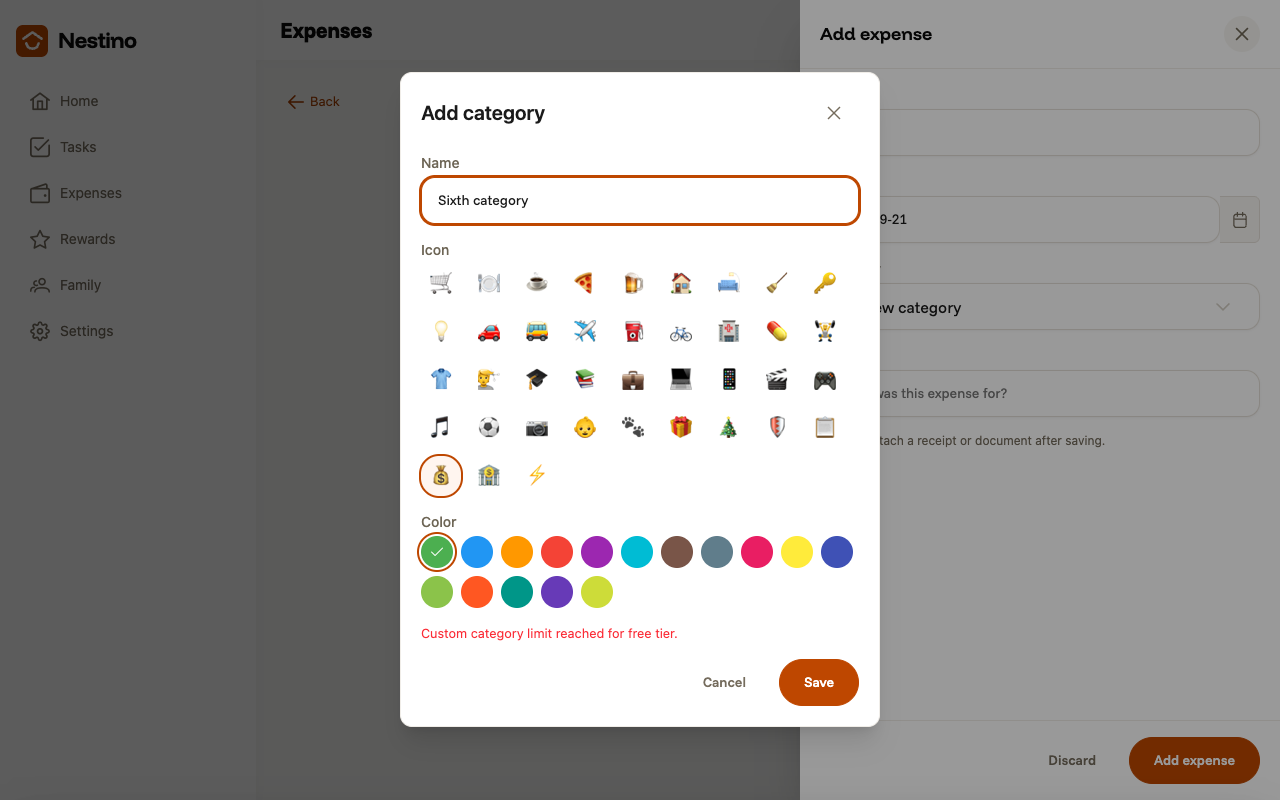
- You can also add a custom category on the fly — in the expense form, open the Category field and pick the last item, + New category.
Preset and custom categories
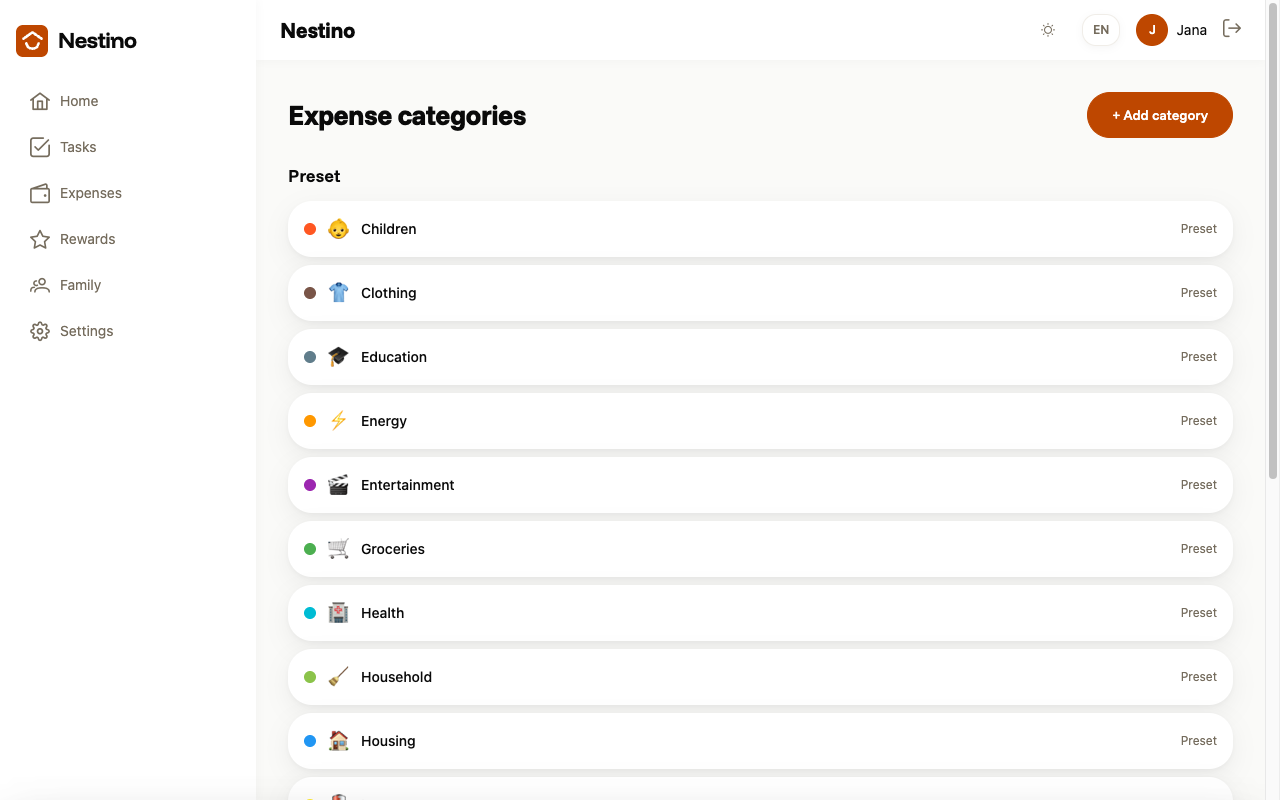
Preset categories (15 of them, tagged Preset) belong to Nestino and are shared by every family — they can’t be renamed, recoloured or deleted, so their row has no buttons. Custom categories belong only to your family; the section heading shows their count, for example “Custom (2/5)”, and each one has a pencil for editing and a bin for deleting.
Adding a custom category
- Click + Add category.
- Fill in Name (required, at most 100 characters, must be unique within the family).
- Pick an Icon from the 39 available emoji.
- Pick a Color from 16 shades.
- Click Save.
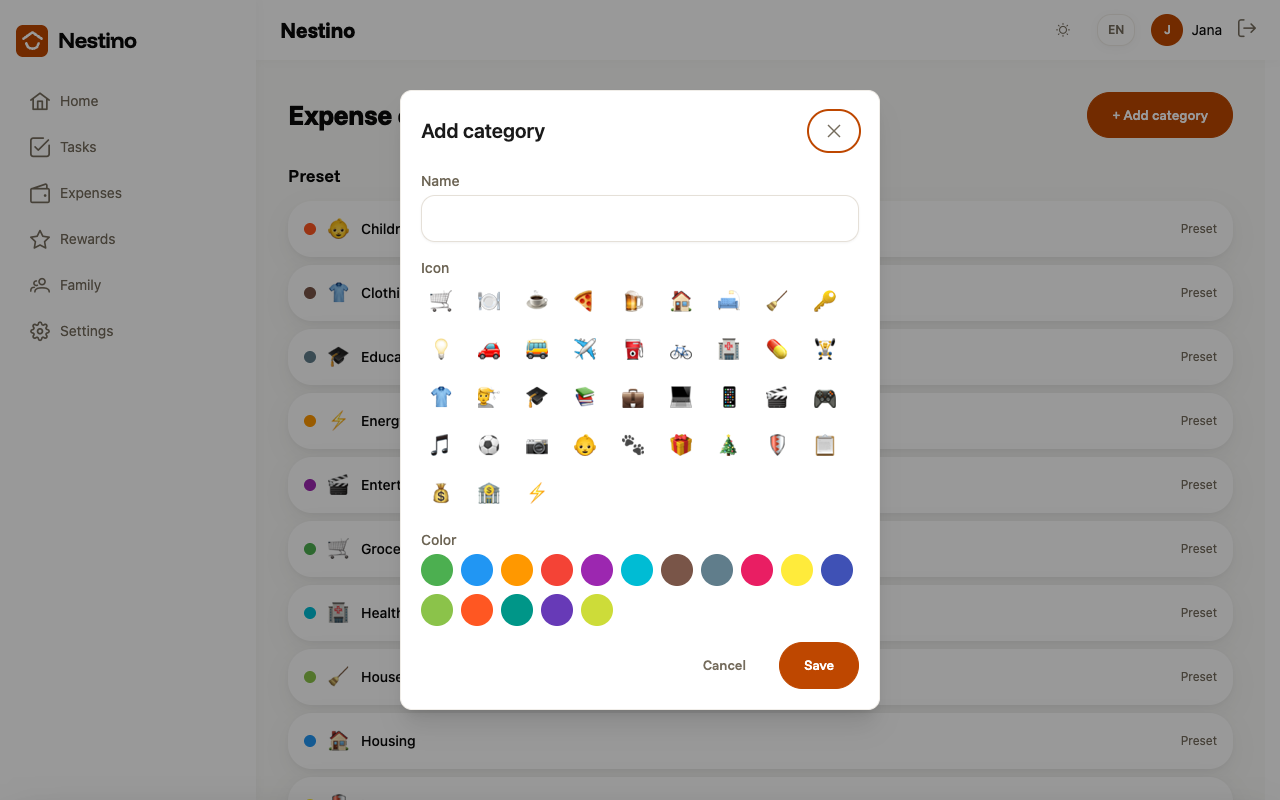
All three fields are required; submitting the form empty shows an error under each one, and the message disappears as soon as you fill the field in. Once saved, the dialog closes and the new category is already selected in the picker.
Editing and deleting
The pencil opens the same dialog pre-filled, this time titled Edit. The bin opens the Delete category dialog, which asks you for a Replacement category for existing expenses — the Delete button stays disabled until you pick one. After deleting, Nestino repoints every expense and recurring payment that pointed to the deleted category onto the replacement.
The limit of five custom categories
A family can have at most 5 custom categories alongside the 15 preset ones — 20 categories to choose from in total. This limit is fixed in the current version of Nestino and cannot be raised in any way.
When you reach it, the + Add category button simply disappears from the Expense categories page — the section heading shows “Custom (5/5)” and no further message appears. The + New category option in the expense form doesn’t check the limit, though, and stays available even after you’ve reached it: if you try to save a sixth category through it, the save fails and an error message appears above the dialog’s buttons saying you’ve reached the limit of custom categories. The name you typed stays in the field.