Recurring payments — intervals and reminders
Applies to 1.6 updatedA recurring payment is a regular expense, like rent or a subscription, that Nestino remembers and tracks the due date of for you. Only admins and parents can create and edit them; other roles have no access to this page.
Where to find and create the payment
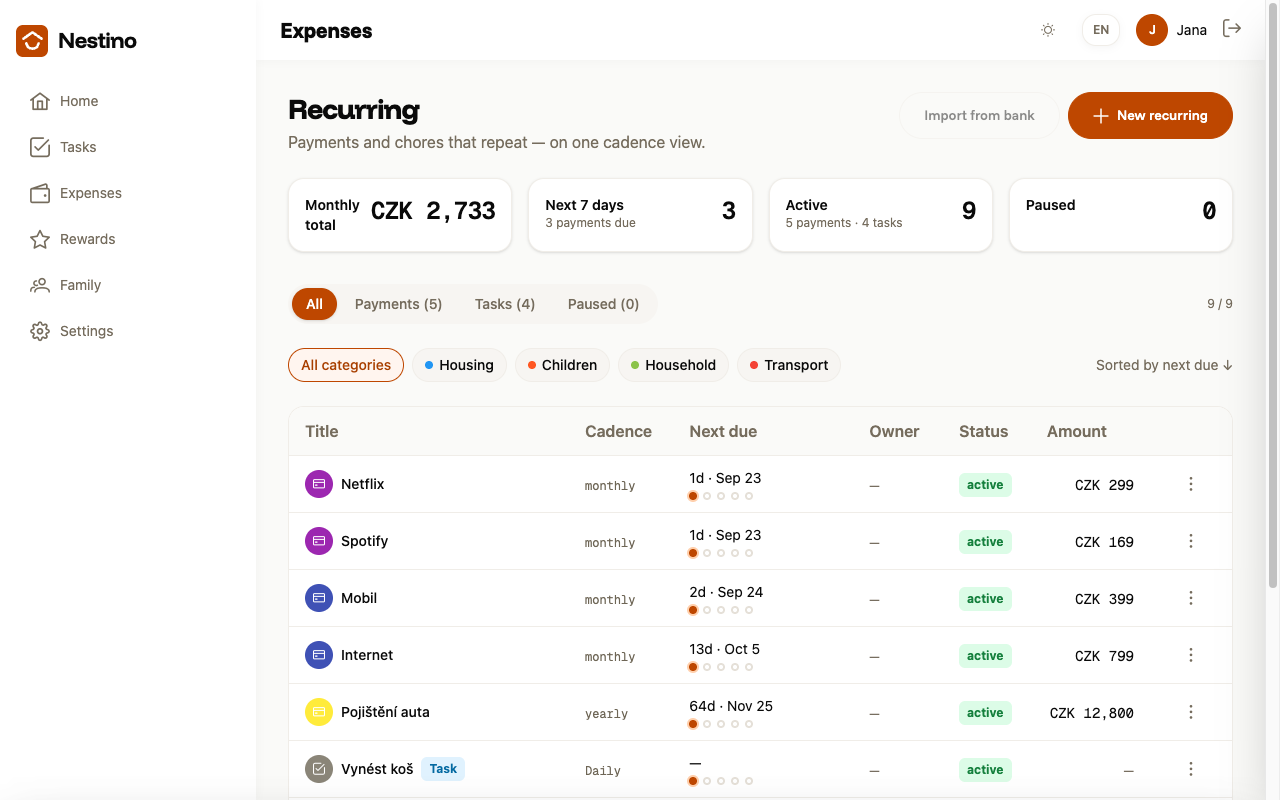
- In the navigation, open Expenses and click Recurring.
- Click New recurring. A type picker opens — choose Recurring payment (the other option, Recurring task, belongs to recurring task templates).
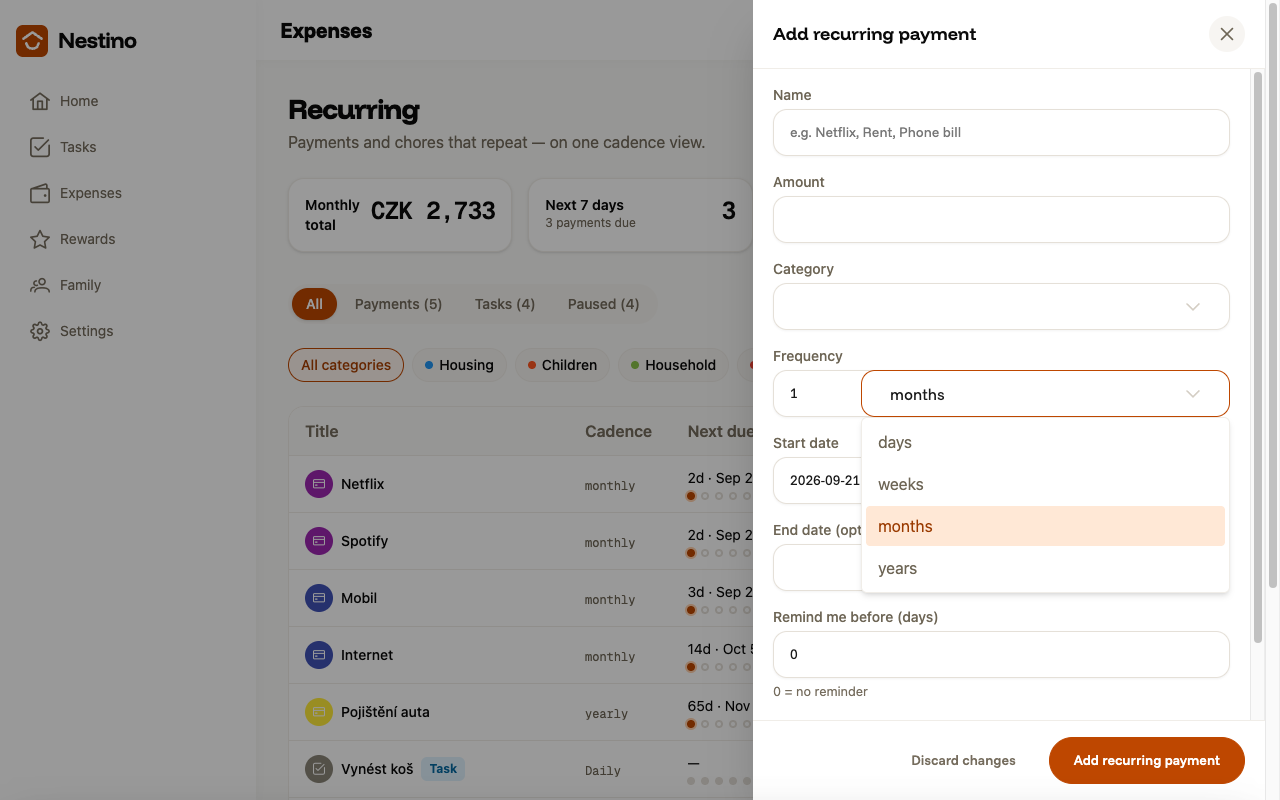
- Fill in the form and save it with the Add recurring payment button.
You can also create the payment directly from an expense’s detail page via Make recurring — the form is then pre-filled with the amount, category and note from the original expense.
What to fill in
| Field | Required | What it means |
|---|---|---|
| Name | yes | E.g. Netflix, Rent, Phone bill. |
| Amount | yes, greater than zero | How much the payment costs. |
| Category | yes | The expense category the payment is filed under. |
| Frequency | yes | A number and a unit — days, weeks, months or years. The default is 1 × months. |
| Start date | yes | The date the payment starts counting from. |
| End date | no | When the recurrence should stop on its own. |
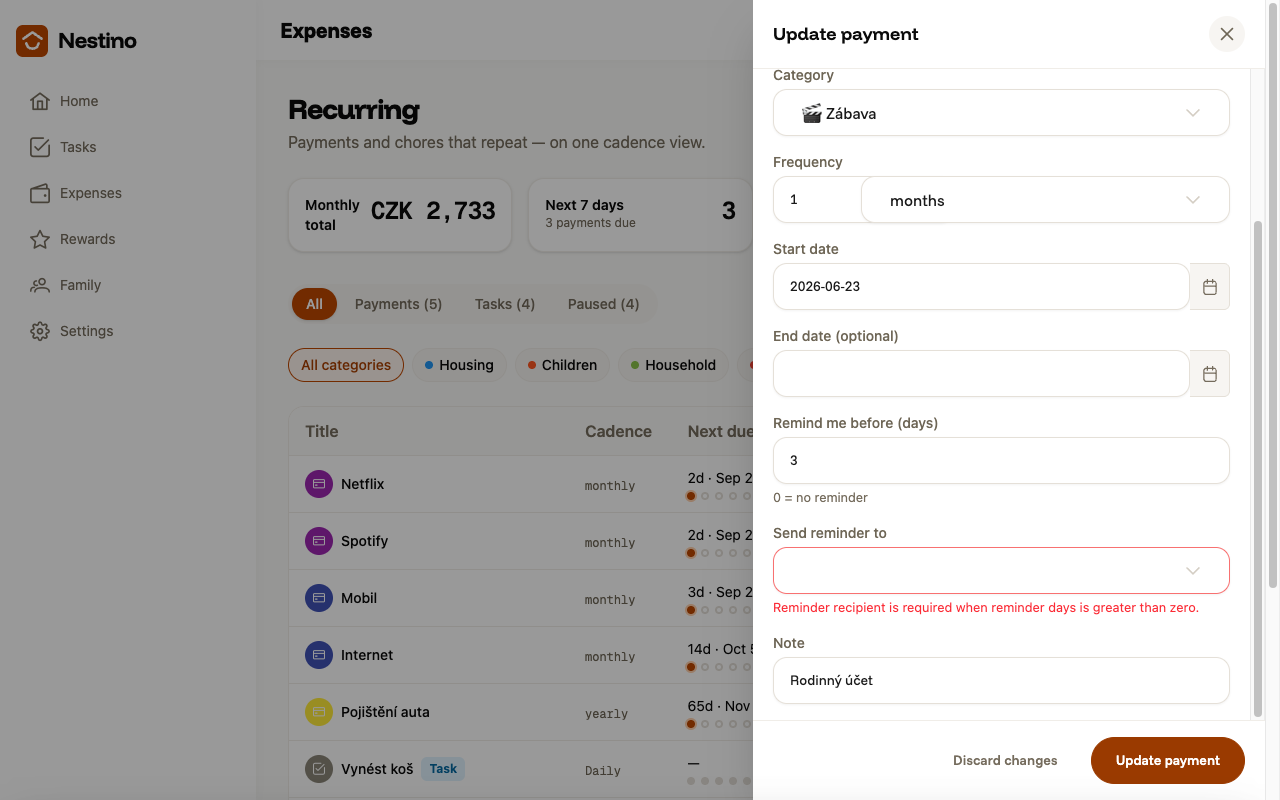
| Remind me before (days) | no | How many days in advance you want a reminder. 0 means no reminder. |
| Send reminder to | conditionally | Which family member gets the reminder. The field appears only when “Remind me before” is greater than 0. |
| Note | no | Optional details. |
After saving
Nestino calculates the payment’s nearest due date and shows it in the Next due column — as a number of days until it’s due, or as the date itself if the due date is today or in the past. Active payments are sorted in the list by nearest due date, and paused ones drop to the bottom. The Monthly total card converts every frequency to a monthly figure and does not include paused payments in the total.
You can pause or delete the payment at any time — the process and what stays intact when you do is described in Pausing and resuming.