First run: the setup wizard
Applies to 1.6 updatedFirst run takes you from registration through email verification to a four-step wizard that sets the household type, invites your family, and picks expense categories. Everyone who registers with Nestino for the first time goes through it.
Where registration and setup happen
- Fill in the registration form and click Create account.
- The Check your inbox screen appears — a verification link arrives at the address you entered.
- Once verified, sign in via Log in (how sign-in works for both adults and children). Nestino redirects you straight into the wizard, which starts at step 1 of 4.
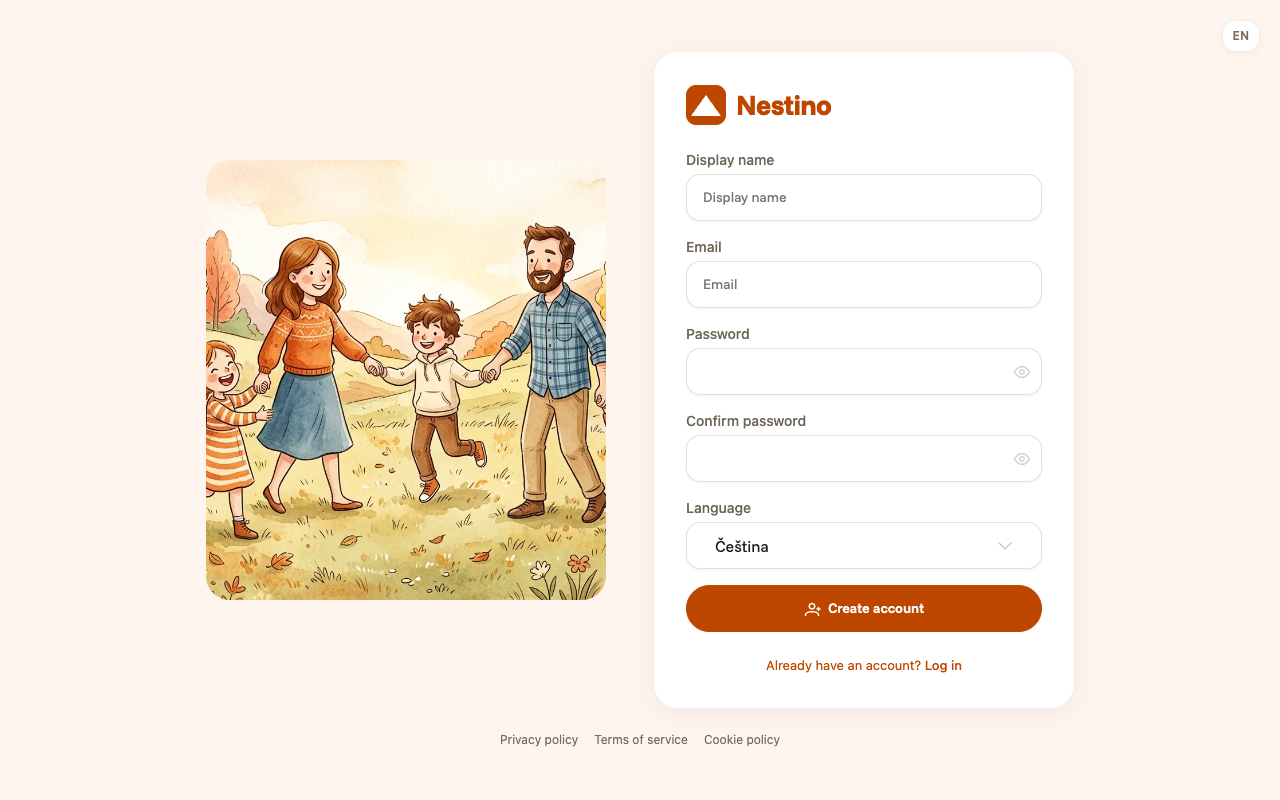
What you fill in when registering
| Field | Required | What it means |
|---|---|---|
| Display name | no | Display name shown to others, up to 100 characters. |
| yes | The sign-in address the verification link is sent to. | |
| Password | yes | At least 8 characters; must include an upper-case letter, a lower-case letter and a digit. |
| Confirm password | yes | Must match the password. |
| Language | yes | The interface language. It defaults to Czech even if you’re viewing the site in English — pick whichever you prefer. |
The wizard’s four steps
After signing in, Nestino walks you through a four-step wizard; the form always shows which step you’re on — for example Step 2 of 4.
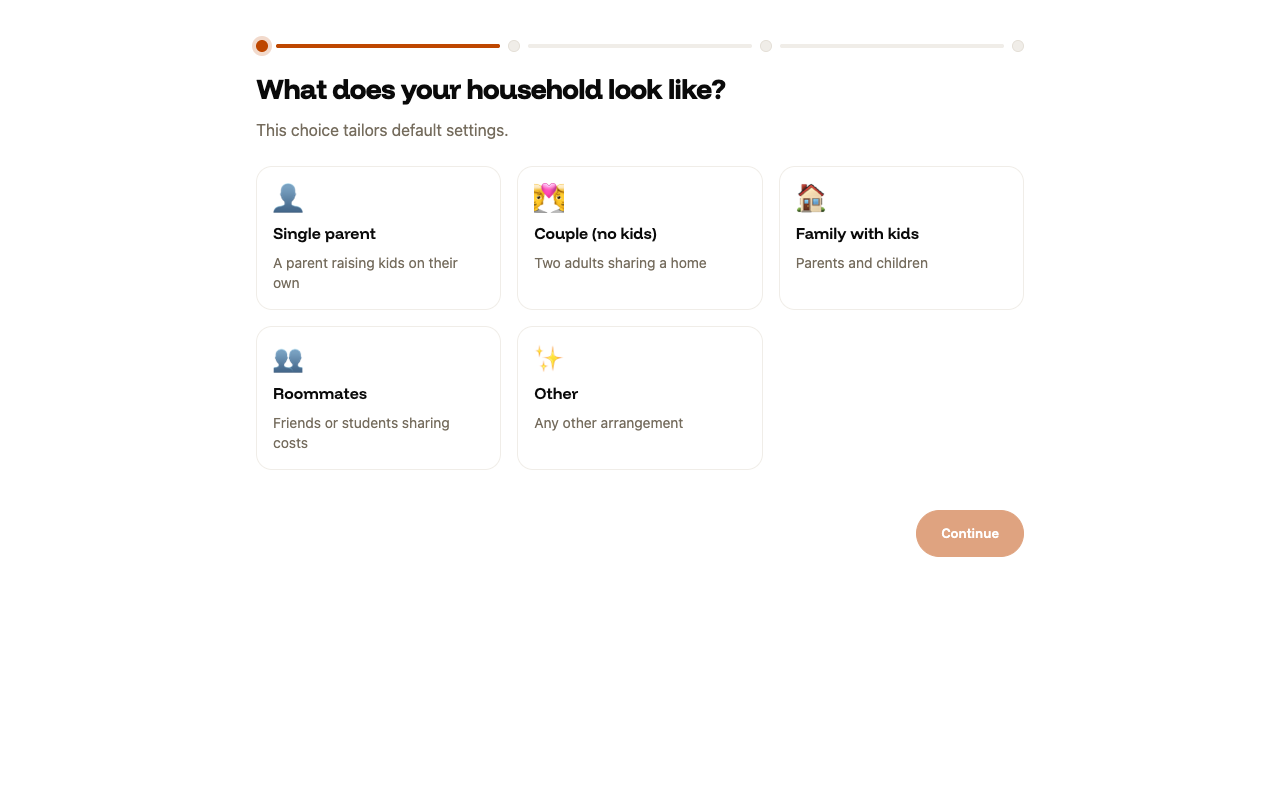
Step 1 — household type
Pick one of the five cards (Single parent, Couple (no kids), Family with kids, Roommates, Other) and click Continue. The button stays inactive until you pick a card — this is the only required step in the whole wizard. This is also where Nestino creates your family and makes you its Admin; it derives the family name from your name automatically.
Step 2 — inviting family members
Add each member’s email and role, or share the invite QR code — either way you can also Skip for now. Details about roles and invites are in the inviting a member article.
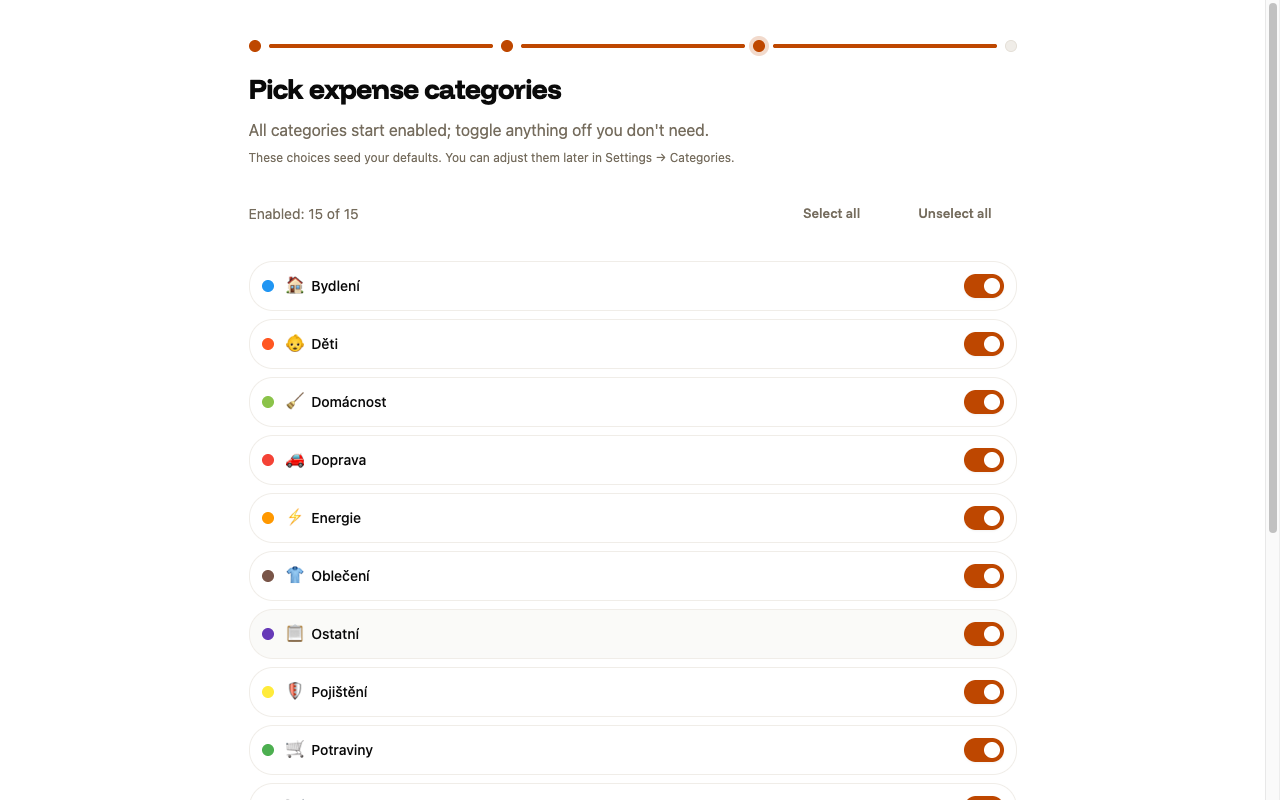
Step 3 — expense categories
All 15 preset categories start on; click any card to turn it off. The Enabled: n of 15 counter updates immediately. You can also Select all or Unselect all, or just Skip the step. More on categories in the Expense categories article.
Step 4 — done
Optionally click Enable push notifications (more in the notifications article) and then Go to dashboard.
What happens next
Once you’re done, you land on the dashboard. If the family has no tasks yet and only one member, you’ll see the Let’s get started intro screen instead of the usual dashboard, with links to invite members, create your first task, and set up rewards.