Signing in — adult vs. child
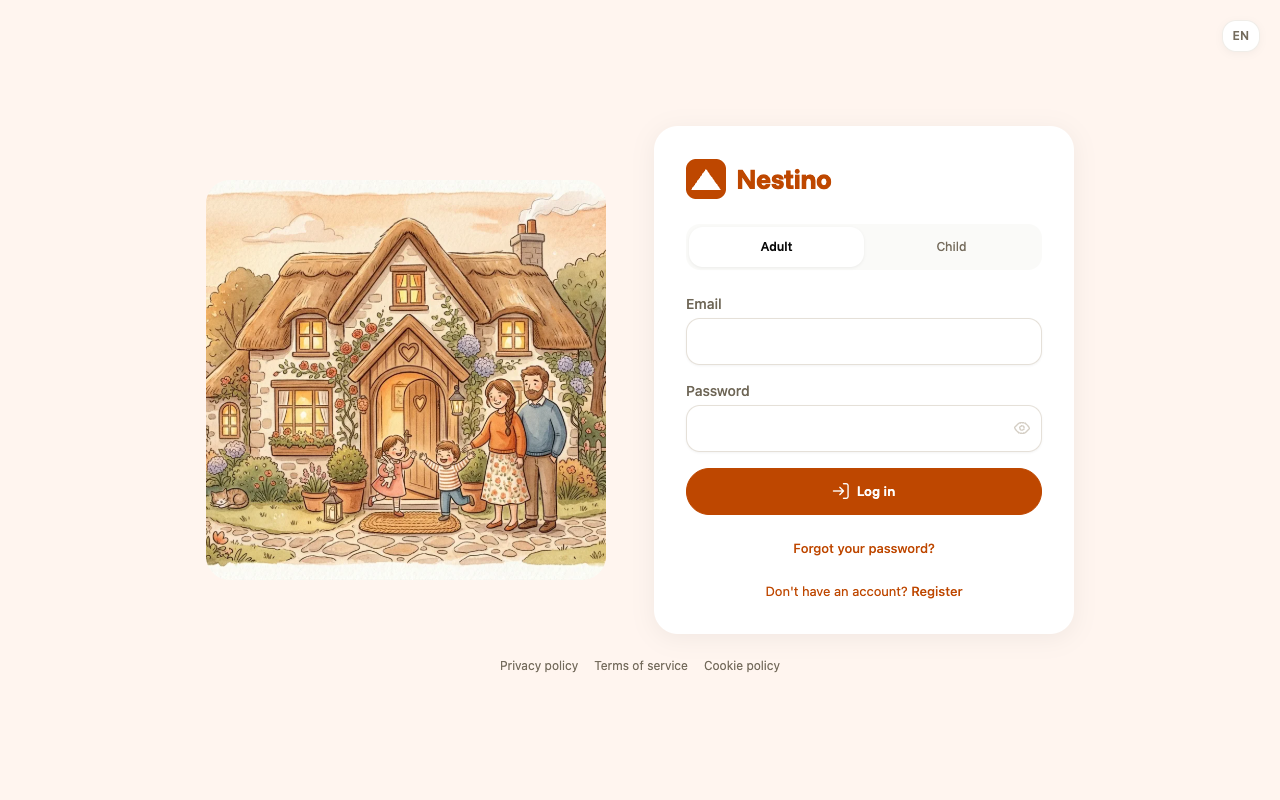
Applies to 1.6 updatedThe sign-in page has two tabs: one for adults, one for children. An adult signs in with an email and password, a child with a family code and a username — a child account has no email at all.
Where you sign in
Open /login. At the top are two tabs: Adult (the default) and Child. If you’re already signed in, the page redirects you straight to the Dashboard.
Adult
Fill in Email and Password and click Log in. Below the form are also the Forgot your password? and Register links — both belong only to this tab.
Child
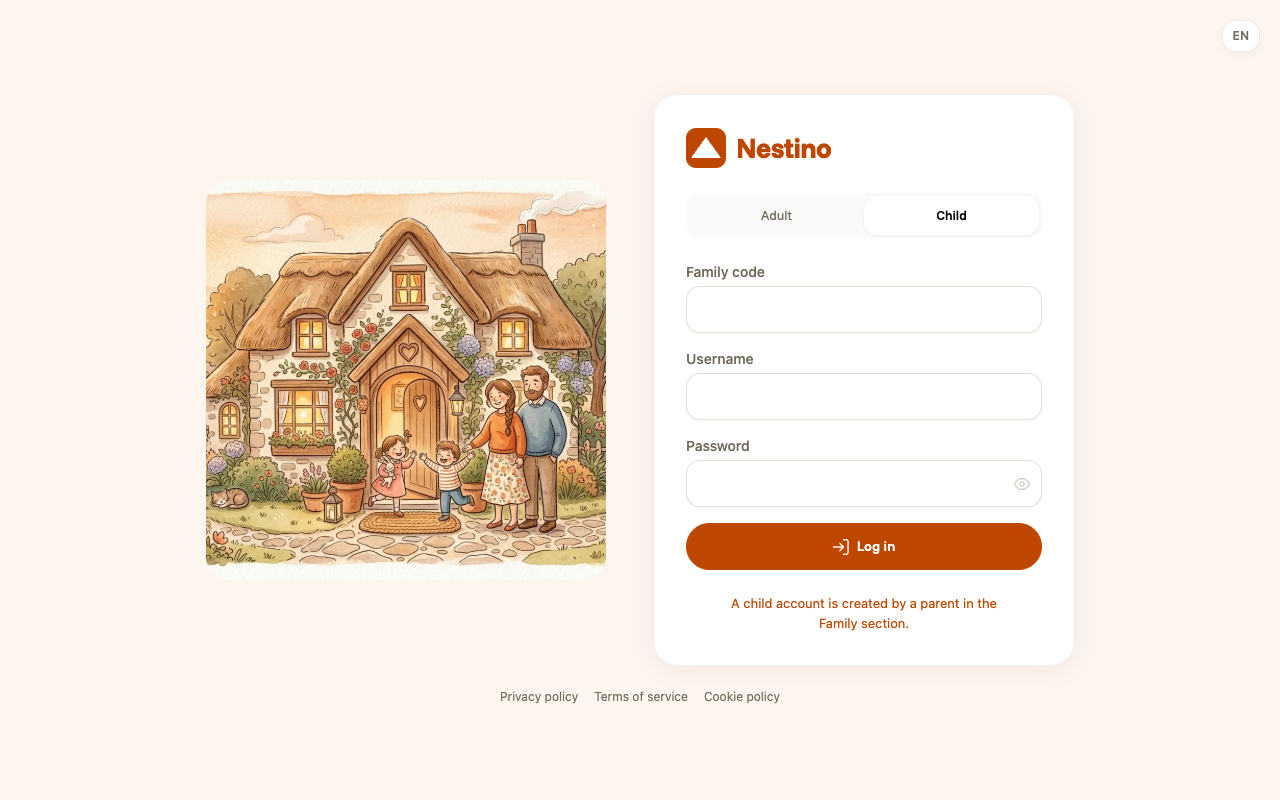
A child fills in Family code, Username and Password and clicks Log in. Instead of Forgot password and Register there’s just the sentence “A child account is created by a parent in the Family section.” — a child account isn’t created by an email invite, but set up by a parent directly; the article Creating a child account covers the steps.
Where to find the family code
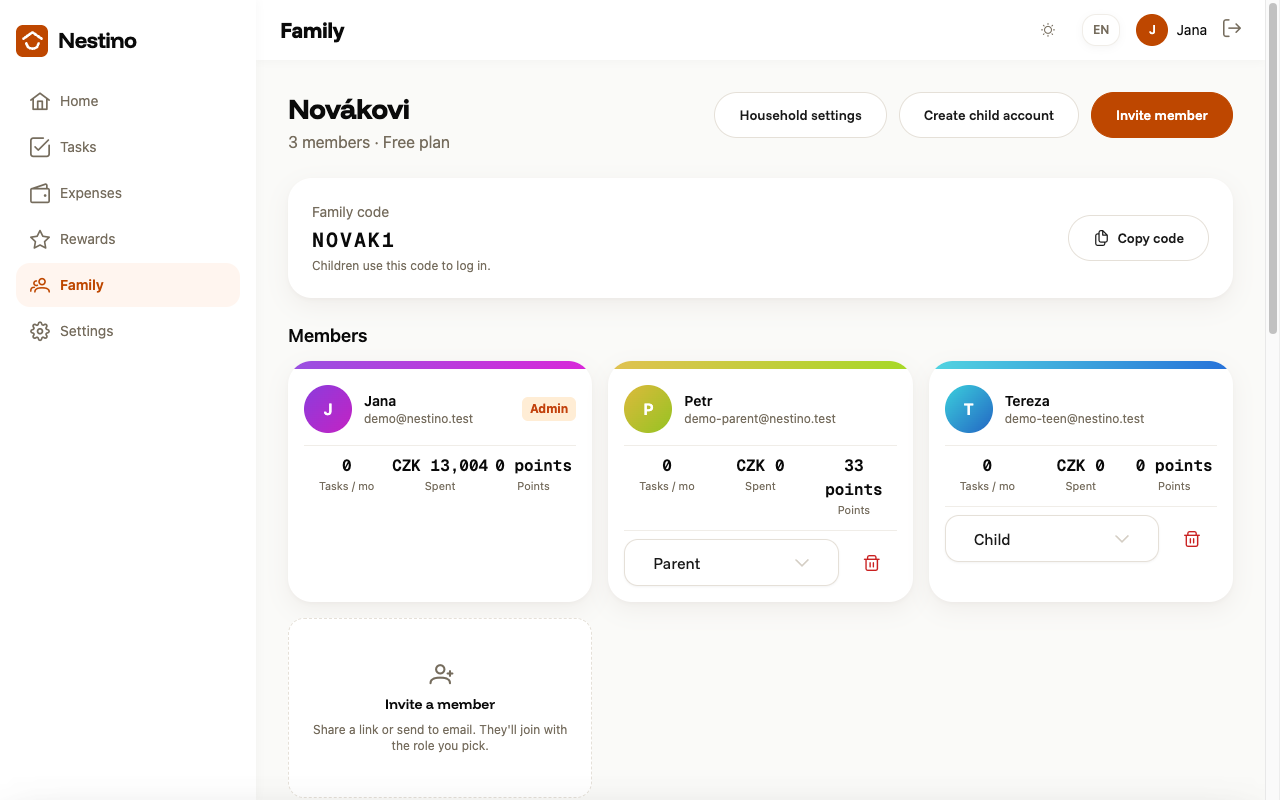
The family code is shown on the Family page, right below its header — it’s visible to admins and parents, a child never reaches the Family page at all. The card is labeled Family code (six characters, uppercase letters and digits), with the sentence “Children use this code to log in.” and a Copy code button. Clicking it shows the confirmation “Code copied!”.
What happens on an error
| Situation | What you’ll see |
|---|---|
| Wrong email or password (adult) | “Invalid email or password” |
| Wrong details (child) | “Invalid credentials.” |
| Too many attempts | “Too many login attempts. Please try again later.” |
Both forms briefly disable every field after submitting and the button shows a loading state.
Forgotten password
The Forgot your password? link leads to a form where you enter your email. Nestino sends a link to set a new password if an account exists for that address — but the page never reveals whether it does or not, always showing the same confirmation “The link is on its way”. This option belongs only to the adult sign-in.
After a successful sign-in, Nestino takes you to the Dashboard, described in The dashboard: what it shows.