Quiet hours
Applies to 1.6 updatedQuiet hours are a window in the day’s schedule during which Nestino sends you no push notifications. Everyone sets them for themselves — adult and child alike — and they apply to every device of that account.
Where to find them
- In the main navigation, open Settings.
- Click Notifications.
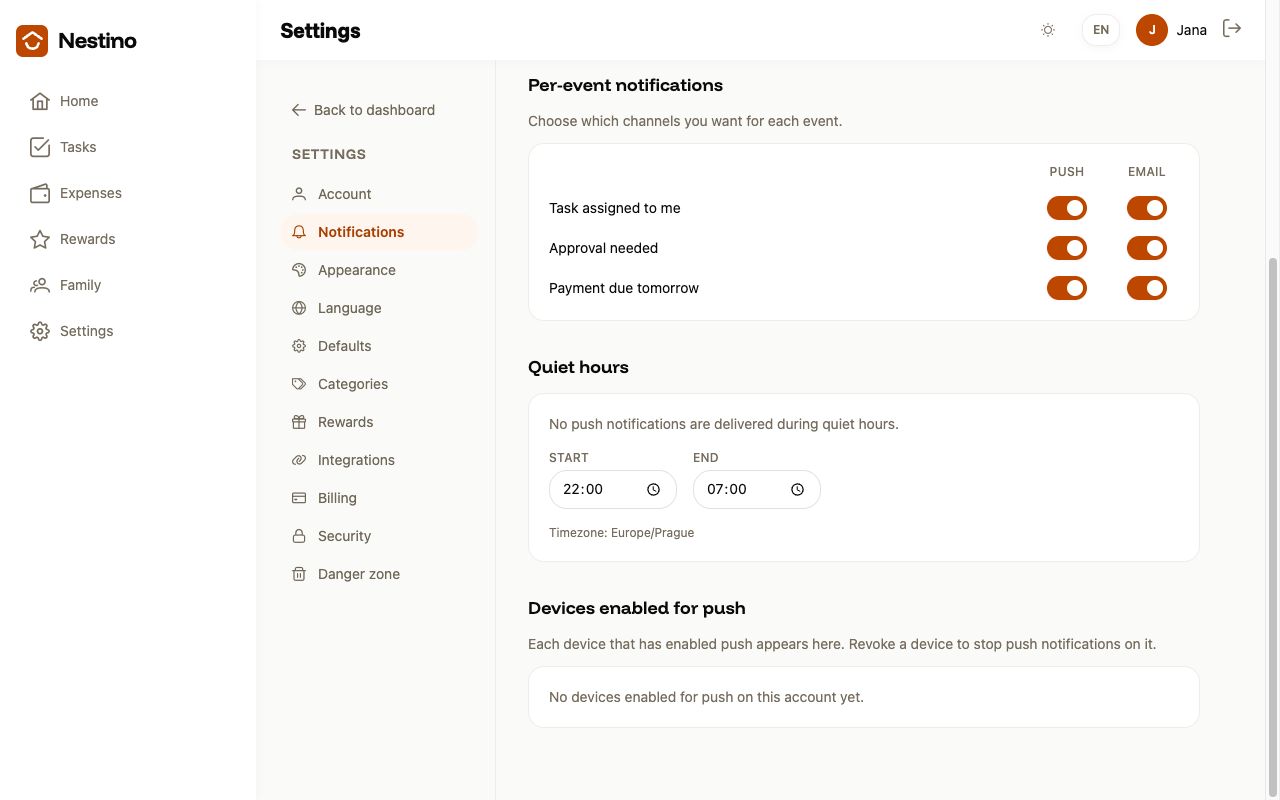
- On the page you will find the Quiet hours card — it is the third section, between per-event notifications and the device list. Quiet hours have no separate page or menu link of their own.
What you set
The card has just two fields and one line of information:
| Field | What it means |
|---|---|
| Start | The time from which push notifications stop being delivered. |
| End | The time from which delivery resumes. |
| Timezone | Shown as “Timezone: Europe/Prague”. It is informational only — the app has no field to change the timezone. |
The default window is 22:00–07:00. There is no Save button — both fields save themselves as soon as you leave them or confirm them.
What it covers and what it does not
Quiet hours apply only to push notifications. They have no effect on email notifications — an email you are entitled to can still arrive in the middle of the night.
A window that crosses midnight is a normal case and needs nothing special: if you set, say, 21:30 as the start and 06:45 as the end, Nestino treats it as one continuous overnight window. The app does not call this out in any way — it just works that way.
The time you enter must be in HH:MM format. If you leave a field empty, Nestino rejects it and reverts to the last saved value.
Who sets it
Quiet hours are always personal, not family-wide — every family member has their own window, including a child account. One person’s setting has no effect on anyone else’s notifications in the family.
Push notifications as a whole are explained in Notifications and push (including the iOS PWA) — that is also where you will find how to turn on notifications on a specific device.