Receipts and documents
Applies to 1.6 updatedA receipt is a photo or document you attach to a saved expense as proof of purchase. Attaching, replacing or removing it is allowed for anyone who can edit the expense — that is, an admin, a parent, or the person who created the expense.
Where to attach a receipt
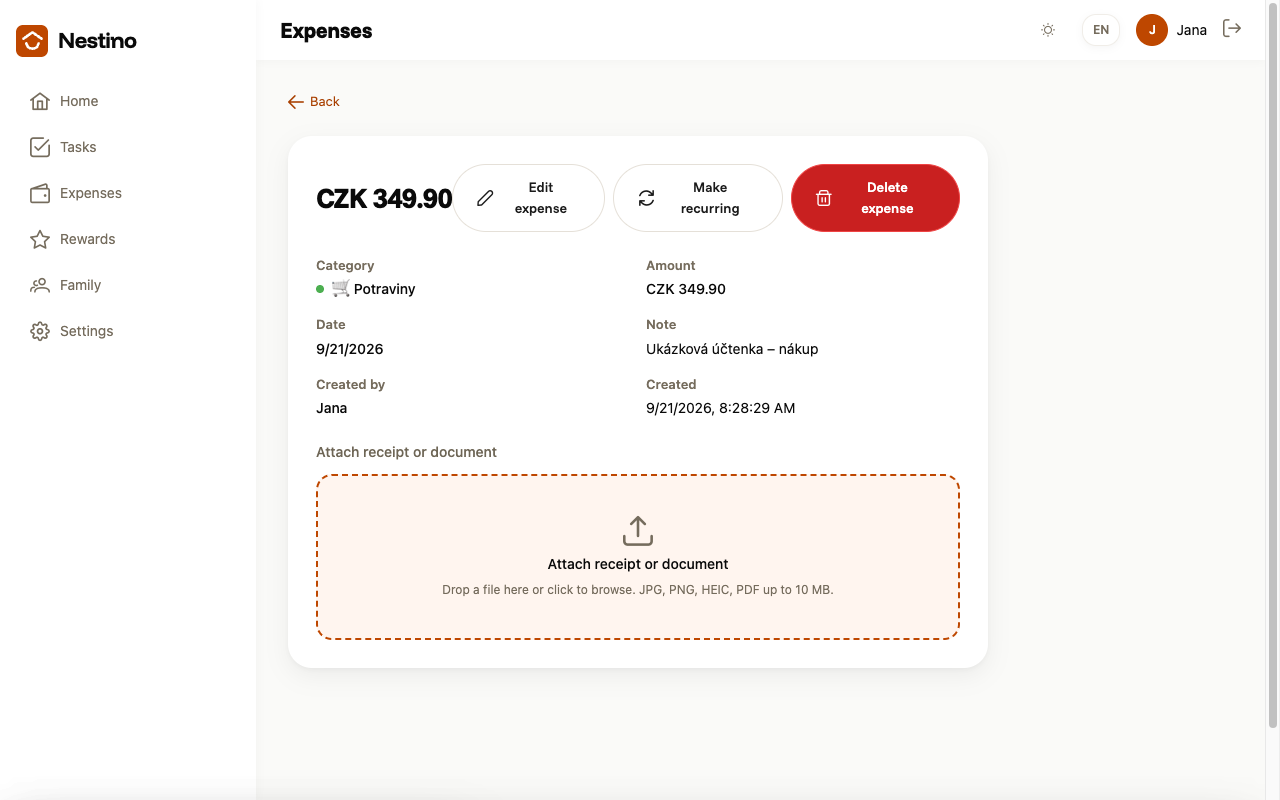
- Open Expenses and click an expense row — its detail opens.
- Near the bottom of the page you’ll find the Attach receipt or document block.
- The same block is also part of the Edit expense form, which you open from the expense’s detail page with Edit expense.
How the upload works
- Drag a file onto the zone, or click it and pick a file in the dialog.
- While it uploads, a row with a spinner and “Uploading receipt…” appears, and the buttons are temporarily disabled.
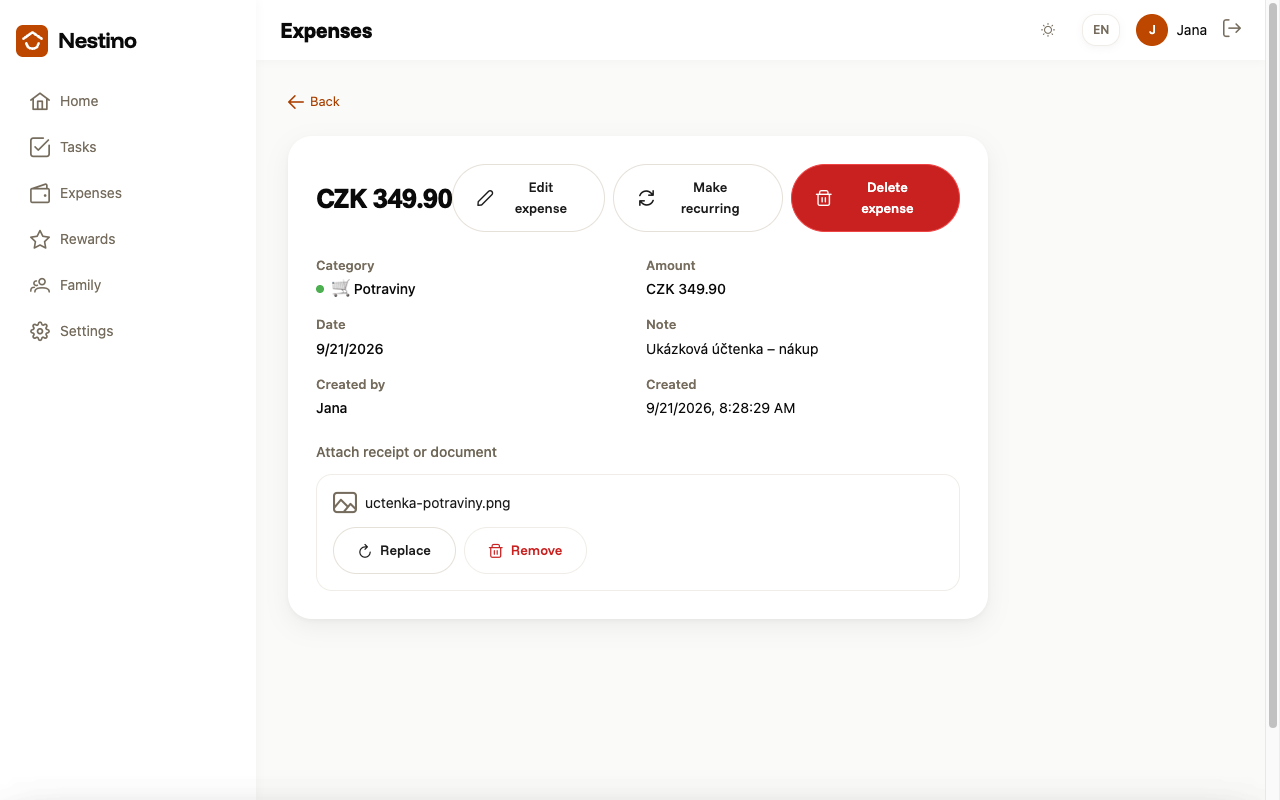
- Once it succeeds, the zone disappears and is replaced by a file icon with its original name, with Replace and Remove buttons next to it.
| What | Rule |
|---|---|
| Format | JPG, PNG, HEIC or PDF |
| Size | 10 MB maximum |
| Count | one receipt per expense |
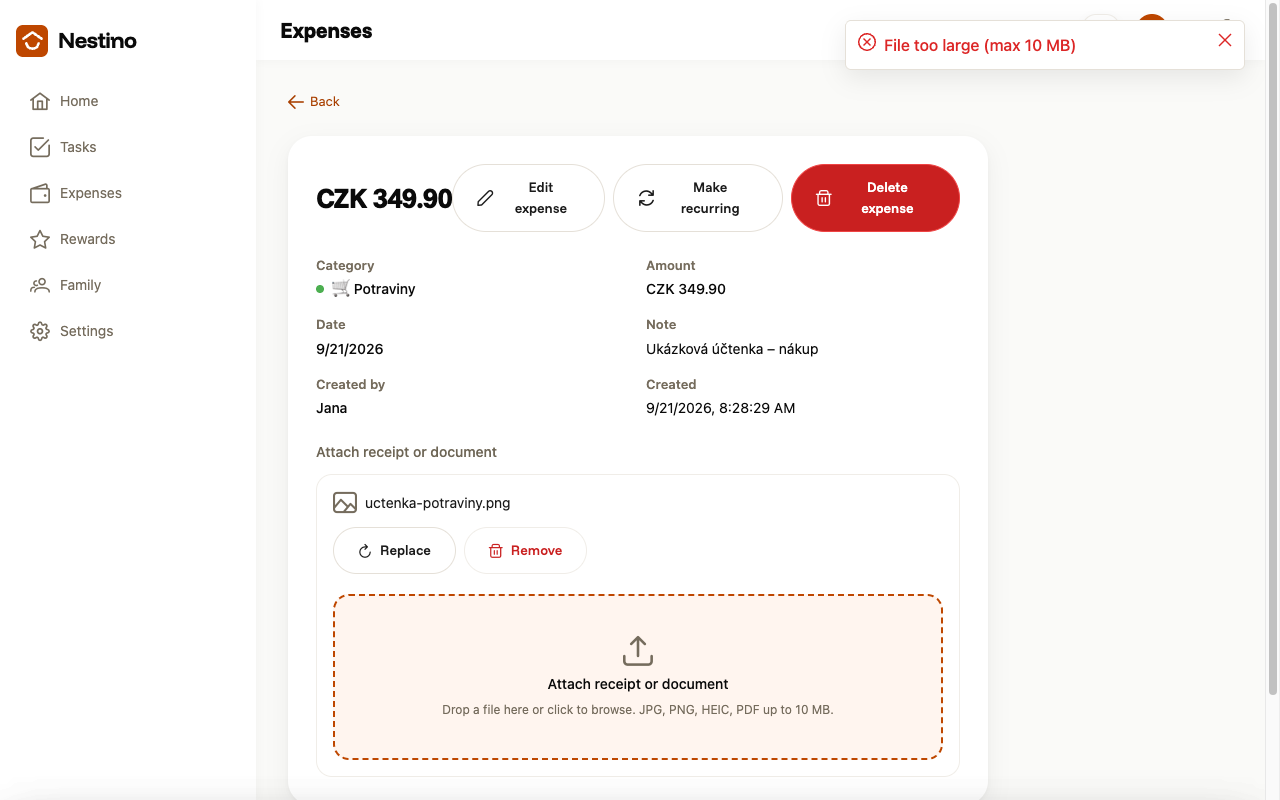
An unsupported file is rejected with “Unsupported file type”, a file over 10 MB with “File too large (max 10 MB)” — in both cases nothing is sent.
Replacing and removing
Replace opens a second drop zone below the existing file; the original receipt is deleted from storage only once the new one has uploaded successfully — if the upload fails, the expense keeps the old one.
Remove deletes the receipt immediately, with no confirmation dialog, and shows a “Receipt removed” message.
Who manages the receipt
The same permission applies as for editing the expense itself: admins and parents manage receipts on any of the family’s expenses, a child only on expenses they created themselves. Trying to attach or remove a receipt on someone else’s expense returns “You don’t have permission to modify this expense”.